Creating and Managing Tool Instances

Learn how to create, configure, and manage tool instances step by step. Master the essentials of tool setup and discover best practices for integrating tools with your Mates.

Last updated 11 months ago

Introduction

Creating and managing tool instances is a fundamental skill that will help you maximize the potential of your Mates on allmates.ai. Whether you're setting up a simple weather tool or configuring a complex API integration, this guide will walk you through the entire process, from initial setup to ongoing management.

Step-by-Step Instance Creation

The journey begins with accessing the Tool Store, your gateway to all available tools on the platform.

1. Accessing the Tool Store

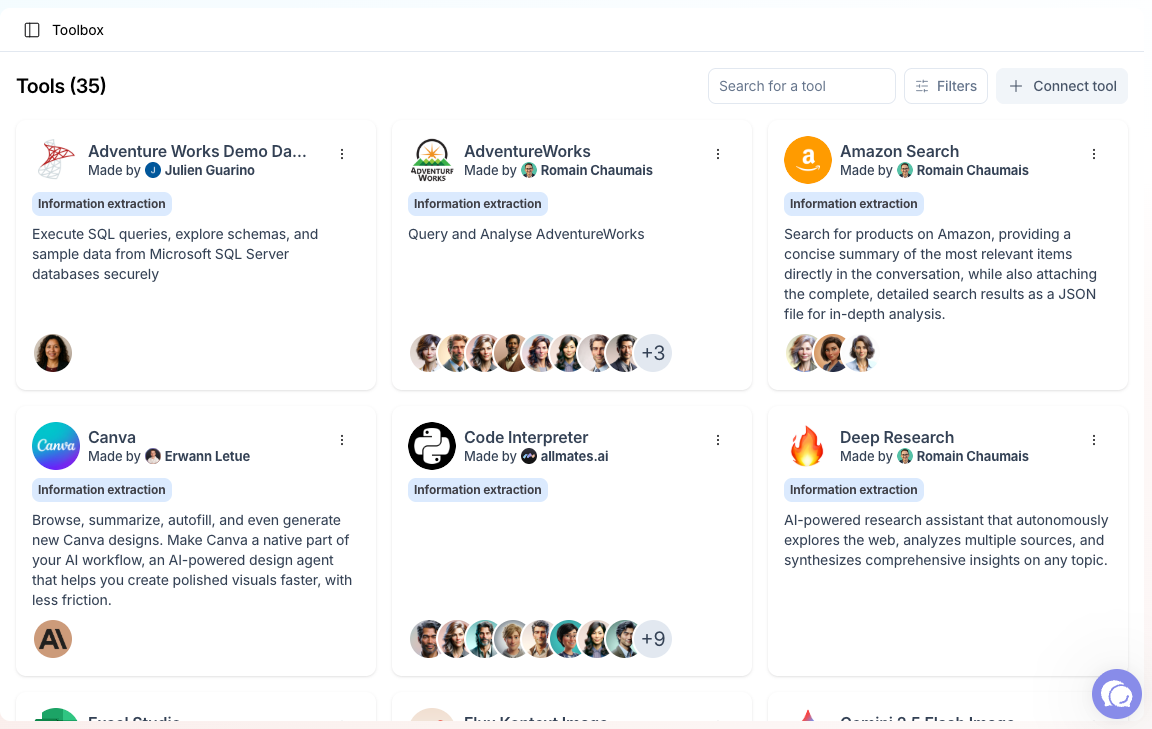
Start by logging into your allmates.ai platform and navigating to the "Manage Mates" section. From there, click on "Tool Store" in the left-hand menu to browse the diverse collection of available tools. Take your time to explore the options and select the tool that best suits your needs.

2. Creating a New Instance

Once you've found the perfect tool, it's time to create your first instance. Click the "+ Create instance" button to begin the setup process. You'll be presented with a form asking for essential information:

  • Instance name: Choose a specific and descriptive name that clearly identifies the tool's purpose. For example, instead of just "Weather Tool," consider "Weather Forecast - Chicago Office."

  • Overview description: Write a clear explanation of what this tool instance will do and how it should be used. This description will guide both you and other users who interact with Mates that have this tool enabled.

  • Icon: While optional, selecting a distinctive icon can make your tool instance easily recognizable at a glance.

3. Configuration Steps

The configuration process varies depending on whether you're setting up a Native Tool or a REST API Tool.

For Native Tools, the process is straightforward:

  1. Fill in the required parameters specific to the tool

  2. Add any necessary credentials for authentication

  3. Click the "Validate" button to ensure your configuration is correct

For the REST API Tool, the process requires more attention to detail:

  1. Carefully paste your OpenAPI YAML schema into the designated field

  2. Configure the credentials according to the API's requirements

  3. Test the endpoints to ensure connectivity

  4. Validate the entire setup before finalizing

More information about the REST API Tool : Master the REST API Tool

Configuration Basics

Proper configuration is the key to a well-functioning tool instance. Let's explore some essential aspects of tool configuration.

Naming Conventions

A thoughtful naming strategy makes tool management much easier, especially as your collection grows. Use clear, descriptive names that include both the service name and the specific purpose. For instance, "Salesforce - Lead Management" immediately communicates both the connected service and its function.

Description Guidelines

Your tool description serves as documentation for yourself and others. A well-crafted description should:

  • Clearly explain what the tool does and its intended purpose

  • Specify common use cases and examples

  • Mention any limitations or constraints

  • Include relevant contact information for support or questions

Consider who will be reading this description and what information they'll need to use the tool effectively.

Credential Management

Security is paramount when dealing with API credentials. allmates.ai provides a secure system for storing sensitive information, but you should still follow best practices:

  • Store API keys and tokens securely within the platform

  • Choose the appropriate authentication method for each API

  • Never share credentials in unsecured channels

  • Regularly update credentials according to your security policies

Remember that once saved, credentials cannot be viewed again for security reasons. If you need to update them, you'll need to provide the complete credential information again.

Adding Tools to Mates

Once your tool instance is configured, it's time to empower your Mates by adding these tools to their capabilities.

Assignment Process

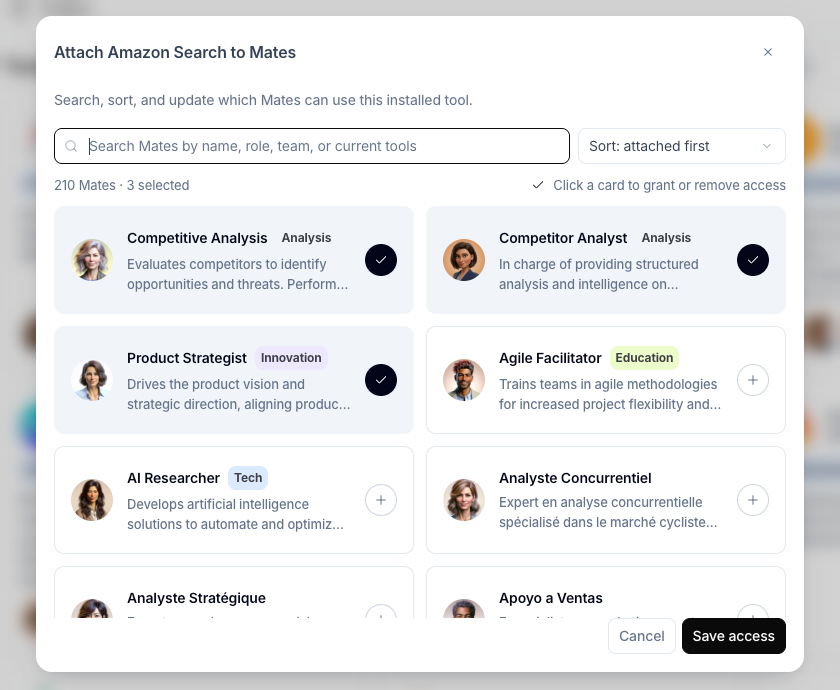
The process of attaching a tool to a Mate is straightforward. Begin by navigating to "Manage Mates" and selecting the target Mate you wish to enhance. Click on the "Tools" tab to view currently attached tools, then select "+ Attach Tool" to add your newly created instance. After selecting your tool instance from the list, confirm the attachment to complete the process.

This simple procedure creates a powerful connection, instantly expanding your Mate's capabilities with the functionality of your tool.

Verification Steps

After attaching a tool, it's crucial to verify that everything is working correctly. Start by checking that the tool is available to the Mate and test basic functionality with a simple request. Verify that the Mate has the necessary permissions to use the tool and carefully monitor initial usage to catch any potential issues early.

Best Practices

Adopting best practices will help you maintain an efficient and secure tool ecosystem on allmates.ai.

Instance Management

Effective instance management requires regular attention and maintenance:

  • Regular reviews are essential for keeping your tool instances in optimal condition.

  • Monitor how your tools are being used, check for any errors or performance issues, and update configurations as needed.

  • Don't forget to remove unused instances to keep your environment clean and efficient.

  • Documentation plays a crucial role in long-term management. Keep your tool descriptions updated as functionality changes, document any custom configurations for future reference, and maintain notes about specific requirements.

  • Tracking changes made to your tool instances will help you troubleshoot issues and understand the evolution of your setup.

Performance Optimization

To ensure your tools run smoothly and efficiently, consider these optimization strategies:

  • Limit the number of tool instances attached to each Mate to prevent overwhelming them with options.

  • Remove any unused instances promptly to reduce clutter and potential confusion.

  • Keep an eye on API usage and limits to avoid disruptions in service, and regularly optimize your configurations for maximum efficiency.

Security Guidelines

Security should always be a top priority when working with external APIs and services:

  • Implement regular credential rotation according to your organization's security policies. Always operate under the principle of least privilege by granting only the minimum necessary permissions.

  • Ensure sensitive data is securely stored within the platform's protected credential system, and conduct regular security audits to identify and address potential vulnerabilities.

Common Pitfalls to Avoid

Even experienced users can fall into these common traps:

  • Over-Configuration can lead to complexity and maintenance challenges. Keep your settings simple and focused on essential functionality. Avoid adding features "just in case" and be wary of creating redundant instances that serve the same purpose.

  • Poor Documentation makes it difficult for others (and your future self) to understand and use your tools effectively. Always write clear descriptions, document any custom configurations, and note special requirements or limitations.

  • Neglecting Updates can lead to degraded performance or security issues. Keep your tools updated with the latest configurations, review them regularly, and stay alert for deprecated features that might need replacement.

  • Insufficient Testing often results in unexpected problems during real-world use. Test your tools thoroughly before deployment, verify all key functions work as expected, and check how the tool handles errors and edge cases.

Troubleshooting Tips

Even with careful setup and maintenance, issues can arise. Here's how to address common problems:

Common Issues

  • Connection Problems are frequently encountered when working with external services. If your tool isn't connecting properly, verify that your credentials are correct and current, check the API's status page for any reported outages, and confirm that your network allows the necessary connections.

  • Configuration Errors can prevent tools from functioning correctly. Review all setup parameters carefully, validate your YAML schema for syntax errors, and check for simple typos that might be causing problems.

  • Performance Issues may indicate problems with the underlying service or your configuration. Monitor rate limits to ensure you're not exceeding allowed usage, check response times to identify bottlenecks, and optimize your queries to improve efficiency.

When to Seek Help

Sometimes, you'll encounter issues that require additional assistance. Don't hesitate to seek help for complex configuration issues, persistent errors that resist troubleshooting, security concerns that need expert attention, or integration problems with other systems.

Next Steps

Now that you understand how to create and manage tool instances, it's time to put your knowledge into practice:

  1. Create your first tool instance using the guidelines in this article

  2. Test the configuration thoroughly to ensure everything works as expected

  3. Attach the tool to a Mate and observe how it enhances their capabilities

  4. Monitor the tool's performance and make adjustments as needed

By following these steps and best practices, you'll build a powerful toolkit that amplifies your Mates' abilities and streamlines your workflows on allmates.ai.