Your First 10 Minutes in allmates.ai: A Quick Start Guide
Four steps from your invitation to your first conversation with a Mate.
Last updated 14 days ago
This guide takes a new member from the invitation to a first conversation with a Mate. Follow the four steps in order. At the end, you know the main parts of the interface and the key words of allmates.ai.
Are you the Owner setting up a new organization? Follow Setting up your organization: Owner checklist first. This guide is for members who are joining an organization that already exists.
Step 1: Join your organization
You get access to allmates.ai through an invitation. There is no public sign-up: an Owner or Admin of your organization invites you.
If you received an invitation email:
- Open the email "Alex invited you to join their team on allmates.ai". If you cannot find it, check your spam folder.
- Click Join Organization.
- If you have no account yet, the page "Come collaborate in {organization}'s organization" opens. Create your account:
- click Sign up with Google or Sign up with Microsoft, if the page shows these buttons; or
- fill in First name, Last name and Password (at least 6 characters), then click Sign up. Your email address is already filled in.
- If you already have an account, click Sign in and log in.
- The Invitations page opens. Click the card of the organization to accept the invitation.
Later, you can find new invitations in the organization menu at the top of the sidebar, under Pending invitations.
If a colleague sent you an invitation link: open the link. Create an account or sign in. You then join the organization automatically.
While allmates.ai prepares your account, the screen shows "We are building your working environment". The app then opens.
For the details, read "Creating Your Account".
Step 2: Find your way around
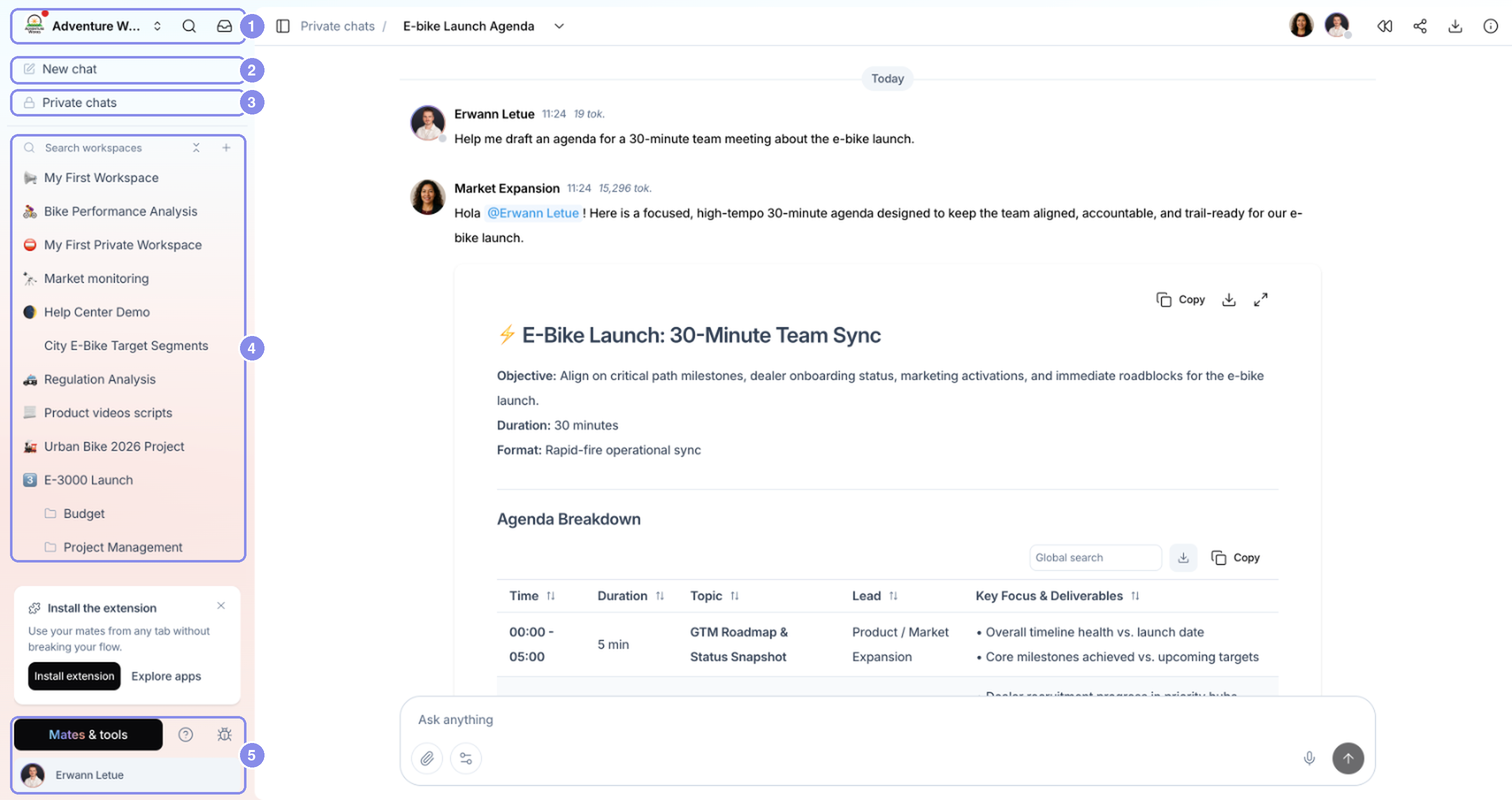
The sidebar on the left holds everything you need:
- At the top: the organization menu, the search (Cmd/Ctrl + K) and your Inbox.
- New chat: starts a private chat with a Mate.
- Private chats: the list of your private chats.
- Workspaces: the shared spaces of your team, if your plan includes them.
- At the bottom: Mates & tools, the help menu, and your avatar, which opens your Account page.
Take a minute to fill in your profile: click your avatar, then fill in Title in the organization and Profile summary. Mates use them to adapt their answers to your role.
Step 3: Talk to a Mate
- Click New chat.
- Click the Mate picker above the composer and choose a Mate. If you do not know which one to pick, keep the one selected.
- Type a greeting or a simple question. For example:
- "Hello! What can you help me with?"
- "I'm new here. How do I get started?"
- "Help me draft an agenda for a team meeting."
- Press Cmd/Ctrl + Enter, or click the send button.
- Read the answer, then ask a follow-up question. In this chat, the Mate answers every message: you do not need to type
@.
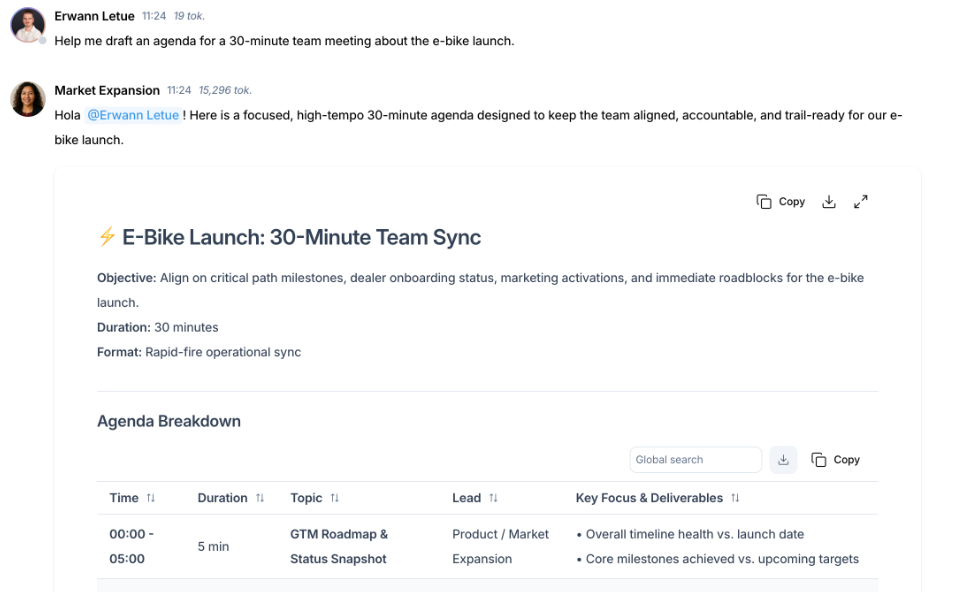
If your plan includes workspaces, try a conversation with your team:
- In the sidebar, under Workspaces, click a workspace.
- Pick a Mate above the composer (Ask anything), write your message and send it.
- The Mate answers. Your colleagues in the workspace can read the conversation and take part.
Step 4: Learn the key words
- Mates: your AI teammates. Each Mate has its own instructions, tools and knowledge.
- Tools: skills attached to a Mate, such as web search, image generation or a connection to another app.
- Knowledge: files given to a Mate so that it uses them in its answers.
- Private chat: a conversation that only you can see.
- Workspace: a shared space for a team, a project or a client. It holds folders and conversations.
- Workspace conversation: a conversation that the members of a workspace share.
- Mentions: type
@and a name to ask a Mate for an answer or to notify a colleague. Type@@to name a Mate or a colleague without an answer or a notification. See "Communication Best Practices: Mastering Mentions".
Next steps
- Explore the Mates: open Mates & tools > Organization's Mates to see the Mates you can use, their tools and their knowledge.
- Ask several Mates: in a conversation, type
@twice to mention two Mates in one message. Both answer. - Create a workspace: in the sidebar, click + next to Workspaces (New workspace). Read "Creating Your First Workspace".
Related articles
Was this helpful?
Still need help? Ask the team