Connecting Apps with MCP Tools (OAuth)
Install an MCP tool from the Tool Store, attach it to Mates and choose whose account it uses.
Last updated 14 days ago
The Tool Store lists many MCP (Model Context Protocol) tools: ready-made connections to apps such as HubSpot, Jira or Slack. Unlike a custom REST API tool, an MCP tool needs no schema. Most of them sign in with OAuth: you authorize the app with an account, and you never copy an API key. This article shows how to install an MCP tool from the store, attach it to Mates, and choose whose account it uses.
Installing a tool needs tool-management rights: the Expert plan by default; your organization's plans may differ.
Install an MCP tool from the store
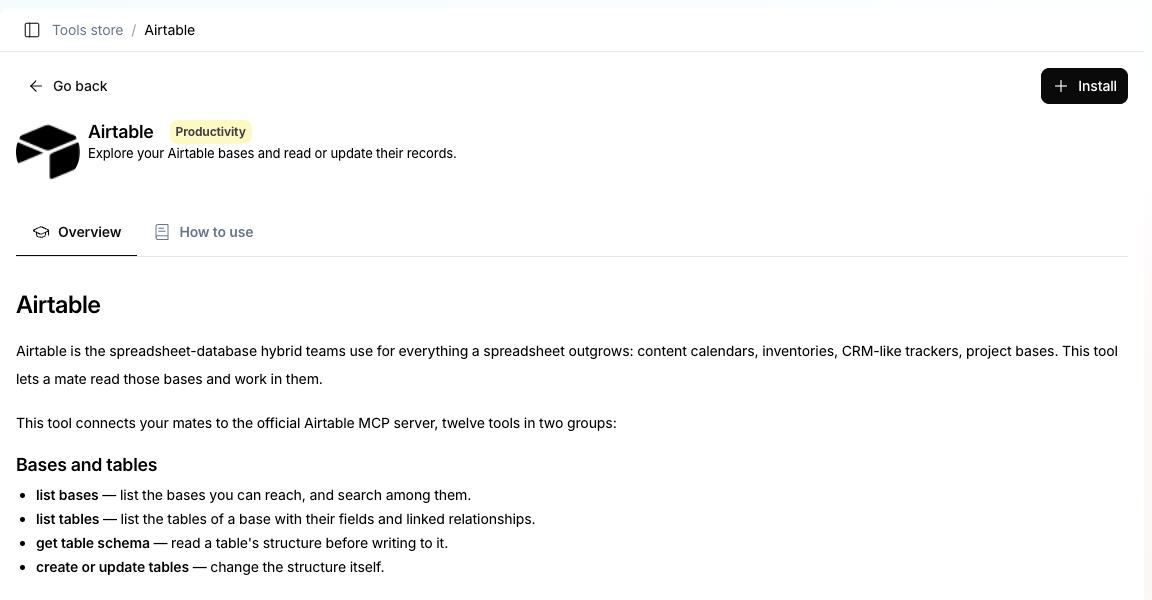
Find the app in the Tools Store (for example HubSpot) and click Install, as for any store tool. If the tool needs setup, the Complete required setup dialog asks only for what the provider needs, such as a server URL or an OAuth client ID. The steps are in "Discovering the Tool Store".
Attach the tool to Mates
Right after the install, the tool attachment dialog lets you choose the Mates that use the tool, then Save access. To attach the tool later, or to remove it from a Mate, see "Creating and Managing Tool Instances".
Choose whose account the tool uses
An OAuth tool works in one of two modes, set under OAuth token scope in its authentication settings:
- Personal (default): each member connects their own account, and the Mate only sees what that member can see in the app.
- Shared: a tool manager connects one account for everyone allowed to use the tool.
How to set each mode, connect the shared account and switch later is in "Personal and shared tool authentication".
Connect your account from a conversation
With a Personal tool, nobody signs in during the install. The first time a Mate needs the tool for you, its reply shows Connect my account: sign in to the app, approve the permissions, and the Mate continues on its own. What the other buttons do and what your colleagues see is in "Personal and shared tool authentication".
Security and privacy
- Personal mode respects each person's rights: the Mate can only reach the data that the person who asks may access in the app.
- Shared mode uses one identity for everyone: choose it for a service account scoped on purpose to what the whole team may see.
- No API key to handle: you sign in with your account and never copy a key.
- Revocable access: remove a connection in Account > Connections, or revoke it from the security settings of the app itself (for example your HubSpot or Google account).
Related articles
Was this helpful?
Still need help? Ask the team