Performing Web Research with Search Tools
Give a Mate a web search tool, check that it has one, and ask for research with linked sources.
Last updated 14 days ago
A Mate's own knowledge stops at the training date of its model. A web search tool lets it search the internet while it answers, so it can bring recent information into your conversation, with links to its sources. This article shows how to give a Mate web search, how to check that a Mate has it, and how to ask for good research.
This page replaces the former article about "Web-Search Mates": web search is a tool that you attach to any Mate, not a kind of Mate.
What a web search tool does
A web search tool queries a search engine and returns current results to the Mate. The Mate reads them and writes its answer. With it, a Mate can:
- find recent news and announcements,
- check facts and figures,
- follow market trends or competitors,
- summarize web pages, with links to the sources.
The Tool Store has several web search tools, in the Web search category. They differ by search engine and by the kind of results they return.
Give a Mate web search
Installing a tool needs tool-management rights: the Expert plan by default; your organization's plans may differ.
- In the sidebar, open Mates & tools, then Tools Store.
- Filter by the Web search category and open a tool to read its Overview.
- Click Install.
- In the Attach Web Search to Mates dialog, click the Mates that should search the web, then click Save access.
To attach a search tool you already installed, open the Mate, then its Tools tab, then Add a tool.
Check that a Mate can search the web
- Tools tab. Open Mates & tools > Organization's Mates, open the Mate, then its Tools tab. Look for a web search tool.
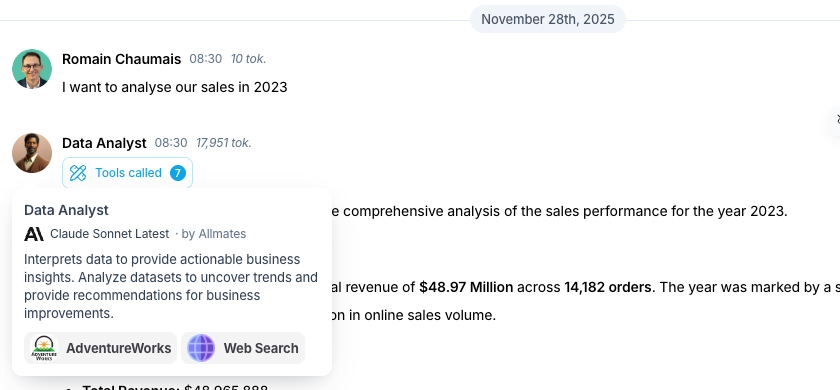
- Mate avatar. In a conversation, hover over the Mate's avatar. The card lists the tools the Mate has.
- Ask the Mate. It can tell you which tools it has.
Ask for web research
- Open a conversation with a Mate that has a web search tool.
- Say what you need, as precisely as you can. In a conversation with several Mates, mention the Mate with @ to direct the request to it.
- "@ResearchMate, what are the latest developments in quantum computing reported this week?"
- "@MarketAnalyst, find recent articles comparing the market share of electric vehicle makers in Europe."
- Read the answer and its sources. To see the searches the Mate ran, click Tools called under its message.
- Ask follow-up questions to refine the search or dig into one source.
Tips for better results
- Give a time frame: "in the last month", "since January", "reported today".
- Use precise keywords for your topic.
- Combine concepts: "impact of AI on renewable energy investments".
- Ask for a source type: news articles, scientific papers, official reports.
Example requests:
- Staying current: "What were the main announcements from the latest Apple event?"
- Fact-checking: "Check the population figure for Tokyo given in this report."
- Competitive intelligence: "Find recent news about competitor X's expansion plans."
Good to know
- The search engine shapes the results. Two search tools can return different sources for the same question.
- Check the sources. The tool retrieves information but does not guarantee that a source is reliable.
- Narrow broad questions. A vague request returns too much to summarize well.
- Specialized data such as weather or stock prices may be better served by a dedicated tool of the store.
Related articles
Was this helpful?
Still need help? Ask the team