Operational Dashboards
Follow tool calls, attachments, errors, credits and each member's activity in the operational dashboards.
Last updated 14 days ago
The operational dashboards show how your Mates run day to day: tool calls, files, errors, credits and the activity of each member. This article describes five pages of Analytics: Tools, Attachments, Errors and Credits in the Dashboards section of the sidebar, and User Activity in the Personal section. It is for Owners, Admins and the people who follow usage and reliability.
Analytics is not included in every offer. To open it and to learn about the period selector, the comparison badges and the info icons, see "Getting Started with Analytics".
Who can see these pages
- Tools, Attachments, Errors and Credits need access to the organization dashboards: an Owner, an Admin, or a User with Analytics full access.
- User Activity is open to every member except a Viewer. A User without full access sees only their own activity. See "Viewing your own activity".
Every widget follows the period selected at the top right of the page. When you apply a Segment from the header, the widgets show only the members of that Segment.
1. Tools
The Tools page analyzes how your Mates use their tools: volume, reliability, speed and cost.
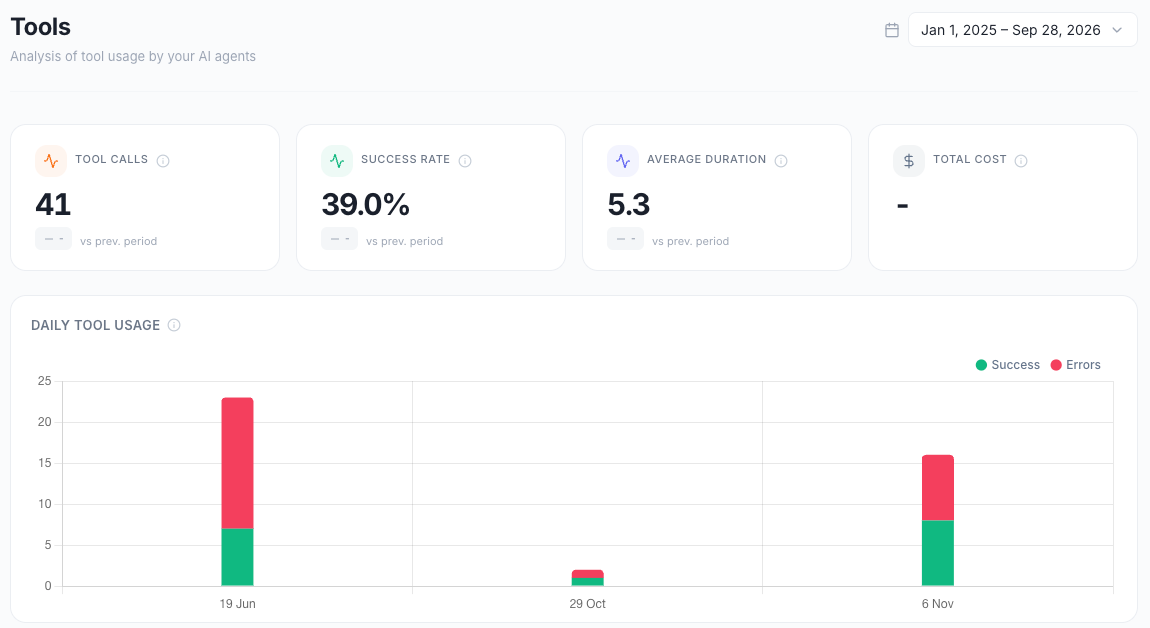
KPI cards
A success rate above 95% is excellent. Below 80%, the tools need immediate action. An average duration under 2 seconds feels fast. Over 10 seconds is very slow. For Average duration and Total cost, a decrease is shown as a good change.
Daily tool usage
A stacked bar chart with one bar per day. Each bar shows the Success calls and the Errors. The height of the bar is the total number of calls. Use it to follow the daily workload and to find the days with many errors.
Top tools
The 8 most used tool instances in the period. For each tool, the list shows its rank, its number of calls, its success rate and its average duration.
Usage by agent
The 6 Mates that make the most tool calls. For each Mate, the list shows the total number of calls and the tools it uses. When a Mate uses more than 4 tools, a +N tag shows the others. Use it to see which Mates depend on a tool before you change or remove it.
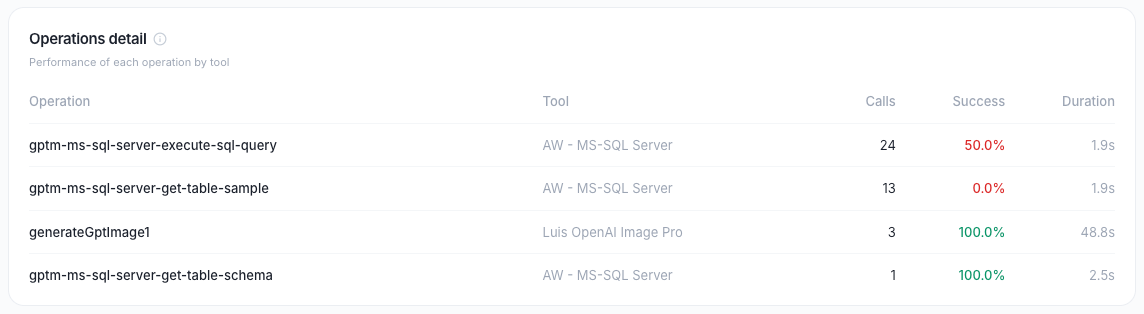
Operations detail
A table of the 20 most used operations. An operation is one action that a tool exposes, for example "search" or "send". The columns are Operation, Tool, Calls, Success and Duration (average). A success rate under 90% shows in red. Use it to find the exact action that fails or is slow inside a tool.
Top users
The 8 members who trigger the most tool calls. For each member, the list shows the name, the job title and the number of calls.
Tool performance
Two breakdowns of the calls, with a count and a percentage for each line:
- By status: Success, Processed, Error and Running.
- By duration: Instant (<0.5s), Fast (0.5-2s), Medium (2-5s), Slow (5-10s) and Very slow (>10s).
Under the breakdowns, one message can show:
- High error rate: more than 10% of the calls fail.
- Response time to optimize: more than 30% of the calls take more than 5 seconds.
- Excellent reliability: more than 95% of the calls succeed.
Usage intensity
Four figures on how much your Mates depend on tools:
- Tools / message: the average number of tool calls per Mate message that uses tools.
- Tools / conversation: the average number of tool calls per conversation that uses tools.
- Tools / user: the average number of tool calls per member who triggers tools.
- Distinct tools: the number of different tools used.
2. Attachments
The Attachments page analyzes the files shared in conversations: volume, storage, types and processing.
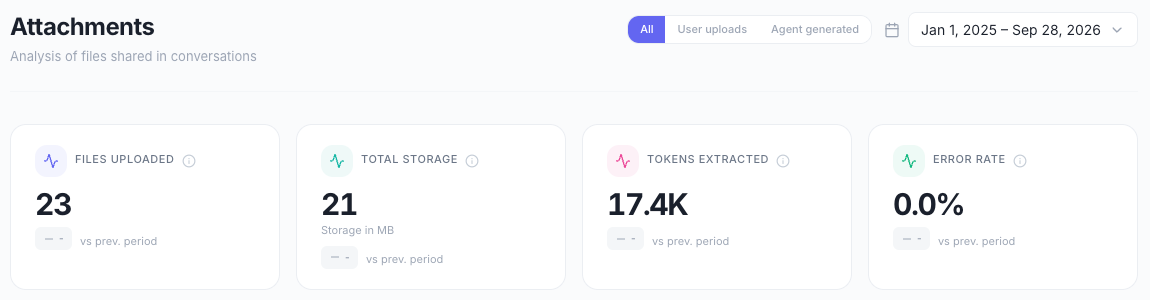
Filter by origin
Next to the period selector, a filter selects the origin of the files:
- All: every file.
- User uploads: the files that members upload.
- Agent generated: the files that Mates create.
The filter applies to every widget of the page. With All, the daily chart and the file bars show the split between the two origins.
KPI cards
An error rate under 5% is excellent. Above 10%, it needs investigation.
Files uploaded per day
A bar chart with two axes. The left axis shows the number of files per day. The right axis shows the Volume (MB) per day. With All, the file bars are split into User uploads and Agent generated.
File types
The files grouped by category: PDF, Images, Text, Documents, Spreadsheets & CSV, Presentations, Code & Data, Archives, Videos and Audio. For each category, the list shows the number of files, the storage and the share of all files.
Size distribution
The files grouped by size: Tiny (< 10 KB), Small (10-100 KB), Medium (100 KB - 1 MB), Large (1-10 MB) and Very large (> 10 MB), with the number of files in each group.
Active conversations
The 8 conversations with the most files. Each line shows a short conversation reference (Conv. # and the end of its identifier) and the number of files.
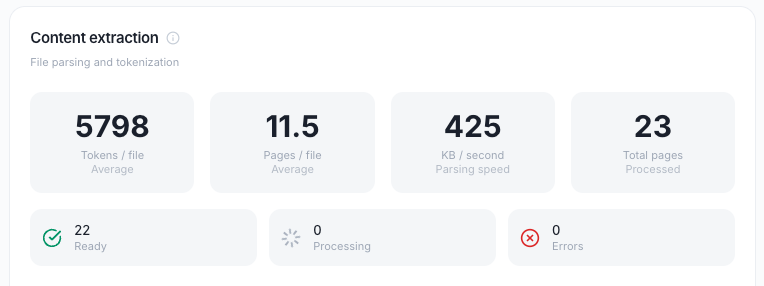
Content extraction
Four figures on file processing:
- Tokens / file: the average number of tokens extracted per file.
- Pages / file: the average number of pages per file.
- KB / second: the average parsing speed.
- Total pages: the number of pages processed.
Under these figures, the processing status of the files shows three counts: Ready (processed and usable), Processing (still in progress) and Errors (the processing failed). Use it to check that the files your members share can be read by the Mates.
Usage intensity
Five adoption figures: Files / conversation, KB / file (avg.), Conversations with files, Active workspaces (workspaces with at least one file) and File types (the number of different types).
3. Errors
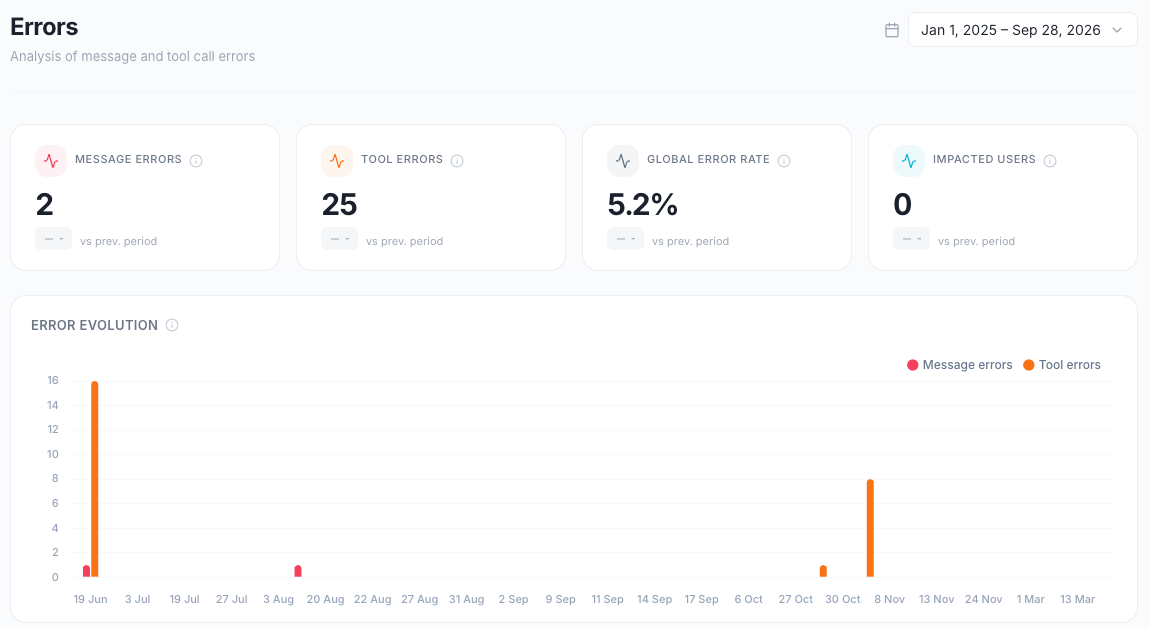
The Errors page shows the errors of messages and tool calls, where they come from and who they affect.
KPI cards
A global error rate under 5% is excellent. Above 10%, it is critical. On this page, a decrease is shown as a good change.
Error evolution
A bar chart with the Message errors and the Tool errors of each day. Use it to spot peaks and to check the effect of a fix.
Error impact
Four figures: Impacted conversations, Concerned agents (Mates with at least one error), Tools in error and Average rate (the global error rate). Under them, one message can show:
- Critical error rate: 10% or more of the operations fail.
- Error rate to watch: between 5% and 10%.
- Excellent reliability: less than 2%.
Error sources
The split of the errors between Messages (model failures, rate limits) and Tools (API errors, timeouts). For each source, the widget shows its share of all errors and its own error rate. When the period has no error, the widget shows No errors.
Error rate by workspace
The 6 workspaces with the highest error rate. Each line shows the message errors against the messages of the workspace, and the error rate.
Error rate by tool
The 6 tools with the highest error rate. Each line shows the errors against the calls, and the error rate.
Errors by agent
The 8 Mates with the most errors. Each line shows the tool errors, the message errors and the error rate of the Mate. Use it to review the instructions or the model of a Mate.
Errors by model
The 8 models with the most message errors. Each line shows the model name, the number of errors and the error rate.
In the error lists, a rate of 10% or more shows in red, and a rate from 5% to 10% shows in a warning color.
Most impacted users
The members who meet the most errors. For each member, the widget shows:
- The name, the job title and the error rate.
- The errors against the interactions (messages and tool calls), and the messages sent.
- The split between message errors and tool errors.
- The number of Mates and tools affected, and the two Mates and two tools with the most errors.
The widget shows 5 members. Click View all users to see the full list, and Show less to reduce it.
4. Credits
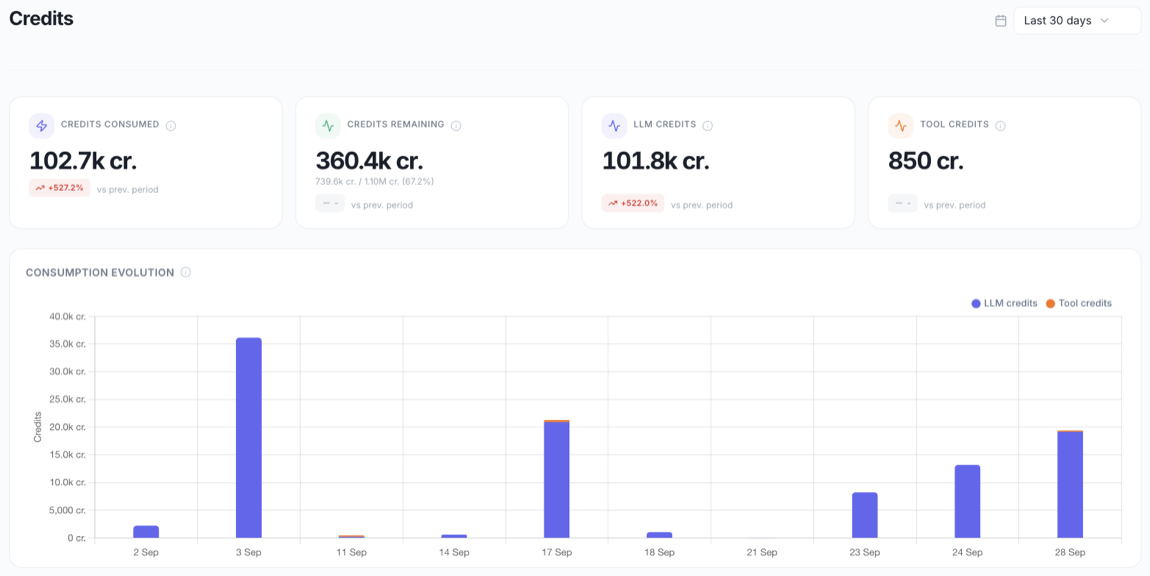
The Credits page shows the credits your organization consumes, split between models and tools, and who and which Mates consume them. To learn what credits are and how the balance works, see "Understanding credits".
KPI cards
Under Credits remaining, the card shows the credits consumed against the credits allocated, with the percentage used. This card does not follow the period or the Segment.
For the consumption cards, a decrease is shown as a good change.
Consumption evolution
A stacked bar chart of the credits consumed each day, split into LLM credits and Tool credits. Use it to follow the trend and to find the days with a spike.
Credits by LLM model
The credits consumed by each model. Each line shows the model name, the credits, a bar with the share of the total and the number of messages. A Total line closes the list.
Credits by tool
The credits consumed by each tool in Pay as you go mode. The credits of each tool are an estimate. Each line shows the credits, a bar with the share of the total and the number of calls. A Total line closes the list.
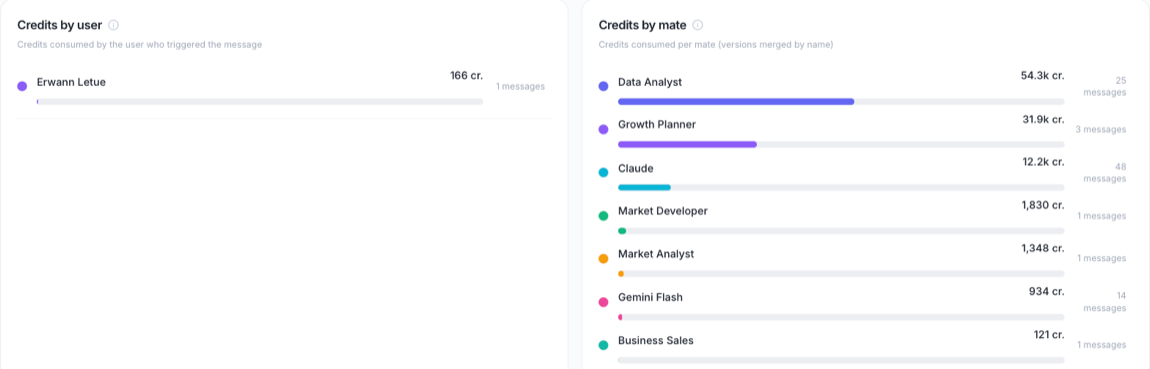
Credits by user
The credits consumed per member. The credits of a message count for the member who triggered it, including the Mate replies to that member. Each line shows the name, the credits, a bar with the share of the total and the number of messages. A Total line closes the list.
Credits by mate
The credits consumed per Mate. The versions of a Mate that have the same name are merged into one line. When a line merges several versions, a small badge shows their number (for example 2v). Each line shows the credits, a bar with the share of the total and the number of messages. A Total line closes the list.
5. User Activity
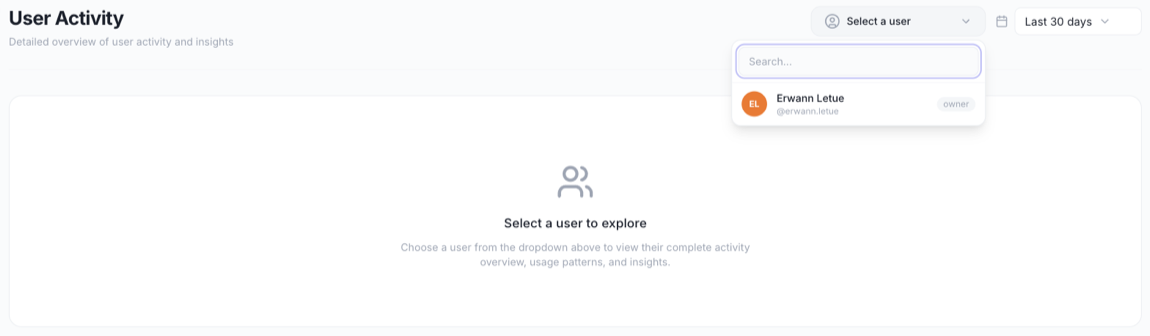
The User Activity page gives a detailed view of the activity of one member.
Choose the member
- With access to the organization dashboards: click Select a user at the top of the page. Type in the search field to find a member by name or username, then click the member. Suspended members show with a suspended badge. Until you select a member, the page shows Select a user to explore. You can also open this page from the Top users list of the Engagement page: click a name to open the activity of that member.
- Without this access: the page opens on your own activity. There is no picker. See "Viewing your own activity".
What the page shows
- Profile: the name, the role, the username, the job title and the Member since date.
- KPI cards: Messages sent, Conversations, Mates used and Tokens generated.
- Secondary cards: Tool calls, Active days (days with at least one message sent), Credits consumed and Errors.
- Daily activity: the Messages sent per day (bars) and the Tokens per day (line).
- Favorite Mates: the 8 Mates the member solicited the most, with the number of requests.
- Top tools: the 8 tools the member triggered the most, with the number of calls and the success rate.
- Tokens by model: a donut chart of the tokens per model, for the 8 most used models.
- Workspaces: the 10 workspaces where the member sent the most messages, with the number of messages.
Use this page to prepare a training, to support a member who meets errors, or to see which Mates and tools a member relies on.
Good to know
- The data is refreshed every hour. The last hour of activity can be missing.
- The time charts show one point per day.
- The costs and the dollar values in Analytics are estimates for monitoring. They are not your invoice. See "Understanding credits".
- A widget with no data for the period shows No data.
- The lists count only what happened during the selected period. A tool, a Mate or a member with no activity in the period does not show.
Related articles
Was this helpful?
Still need help? Ask the team