KPI Reference Guide
What each Analytics indicator measures, how to read its trend badge and how it is calculated.
Last updated 15 days ago
This article is for administrators of a dedicated instance.
This guide defines every KPI card of the Analytics dashboards: what it counts, how it is computed and how to read its trend. It is for Owners, Admins and Users with Analytics full access, who see the organization dashboards. Analytics is available on your instance if your instance includes it.
Understanding KPIs
What a KPI card shows
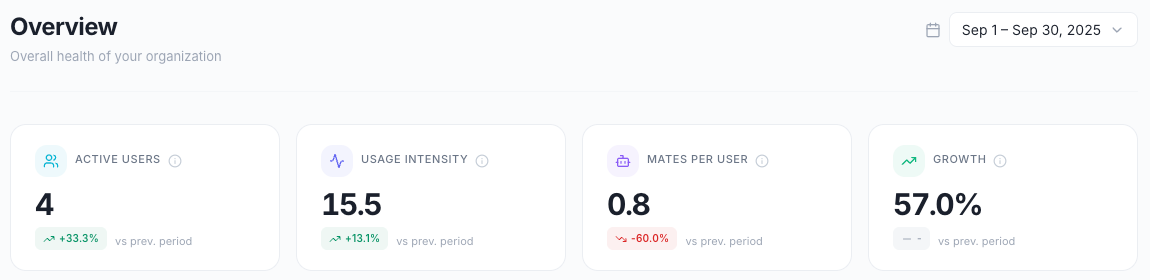
A Key Performance Indicator (KPI) is a measured value that shows how your organization uses its Mates. Each KPI card shows:
- The value for the selected period.
- A trend badge that compares the value with the previous period, followed by vs prev. period.
- A color on the badge: green for a good change, red for a bad change, grey for no change.
Info tooltips
Each KPI card has an info icon next to its label. Hover over the icon, or click it, to see the description and the formula of the KPI. The definitions and formulas in this guide match those tooltips.
Time filters and comparison
The period selector sits at the top right of every page. Pick a preset, or pick a start date and an end date on the calendar and click Apply. Last 30 days is the default.
The trend badge compares the selected period with the period before it:
Trend formula:
((Current - Previous) / Previous) × 100The badge is grey when the change is between -0.5 % and +0.5 %. It shows a dash when the previous period has no value.
For most KPIs, an increase is good. For the KPIs where lower is better, the badge colors invert: a decrease shows in green. These KPIs are Tokens / response, Credits consumed, Total cost, Cost / user, Average duration, Message errors, Tool errors, Global error rate, Impacted users, LLM credits, Tool credits and the Attachments Error rate.
Figures for one team
Every KPI covers the whole organization by default. To see the figures of one team, apply a Segment from the Segment selector in the header, which shows All members by default. The KPIs of every dashboard then count only the members of that Segment. See "Segments: compare teams across every dashboard".
Overview dashboard KPIs
Active users
Definition: The number of unique organization members who sent at least one message during the selected period.
Formula:
Count of unique members who sent at least one messageWhat it measures: platform adoption and the size of the active user base.
Good trend: increasing (more users adopt the Mates).
Example: over the last 30 days, 45 active users, trend +12.5 % (45 against 40 in the previous 30 days).
Usage intensity
Definition: The average number of human messages sent per active user. Mate replies are not counted.
Formula:
Human messages ÷ Active usersWhat it measures: how deeply users engage with their Mates.
Good trend: increasing.
Example: 1,350 human messages ÷ 45 active users = 30 messages per user.
Interpretation:
- Under 10: light usage
- 10 to 30: moderate usage
- 30 to 50: heavy usage
- Over 50: power user behavior
Mates per user
Definition: The average number of different Mates used per active user. The dashboard counts the distinct Mates that received at least one message in the organization, then divides by the active users.
Formula:
Distinct Mates used ÷ Active usersWhat it measures: the diversity of Mate usage and Mate discovery.
Good trend: increasing (users explore more Mates).
Example: 27 distinct Mates used ÷ 45 active users = 0.6.
Growth
Definition: The percentage change in active users compared to the previous period.
Formula:
((Current active users - Previous active users) / Previous active users) × 100What it measures: adoption velocity, platform momentum and user acquisition success.
Good trend: positive growth.
Example: 45 active users in the current period against 40 in the previous period gives a growth of +12.5 %.
Engagement dashboard KPIs
Active users (Engagement)
Definition: The number of unique members who sent at least one message during the period. It is the same figure as Active users on the Overview page.
Formula:
Count of unique members who sent at least one messageConversations / user
Definition: The average number of conversation sessions per active user.
Formula:
Total conversations ÷ Active usersWhat it measures: session frequency, and how often users come back.
Good trend: increasing.
Example: 225 conversations ÷ 45 active users = 5.0.
Interpretation:
- 1 to 3: occasional use
- 4 to 7: regular use
- Over 7: frequent, habitual use
Messages / user
Definition: The average number of human messages sent per active user. Mate replies are not counted. It is the same figure as Usage intensity on the Overview page.
Formula:
Human messages ÷ Active usersGood trend: increasing.
Mates explored / user
Definition: The average number of distinct Mates used per active user. It is the same figure as Mates per user on the Overview page.
Formula:
Distinct Mates used ÷ Active usersWhat it measures: Mate discovery and usage diversity.
Good trend: increasing.
Example: three active users. User A uses Mates X, Y and Z. User B uses Mates X and Y. User C uses Mate Z. The organization used 3 distinct Mates, so Mates explored / user = 3 ÷ 3 = 1.0. A Mate that several users share counts once.
Activation rate
Definition: The percentage of organization members who sent at least one message during the period. The User breakdown widget shows it as the active percentage. Suspended members are not counted as inactive.
Formula:
Active users ÷ Total members × 100What it measures: adoption and onboarding success.
Good trend: increasing (more members become active).
Example: 45 active users out of 60 members = 75 %.
Interpretation:
- Under 30 %: low adoption, needs attention
- 30 to 60 %: moderate adoption
- 60 to 80 %: good adoption
- Over 80 %: excellent adoption
Mates dashboard KPIs
Active Mates
Definition: The number of Mates that received at least one request during the period.
Formula:
Count of Mates with at least one requestWhat it measures: how many of your Mates are in use.
Good trend: increasing.
Example: 12 active Mates out of 20 Mates in the organization = 60 % of the Mates in use.
Requests
Definition: The total number of human messages addressed to a Mate over the period. Messages between Mates are not counted.
Formula:
COUNT(human messages addressed to a Mate)What it measures: the demand for your Mates.
Good trend: increasing.
Users
Definition: The number of unique users who interacted with at least one Mate.
Formula:
Count of unique users with at least one requestWhat it measures: the reach of your Mates across the organization.
Good trend: increasing.
Tokens / response
Definition: The average number of tokens consumed per Mate message. Every agent message counts, including the intermediate steps of agent chains.
Formula:
Total tokens ÷ Agent messagesWhat it measures: response efficiency.
Good trend: decreasing or stable. The badge shows a decrease in green.
Example: 2,250,000 tokens ÷ 1,125 agent messages = 2,000 tokens per response.
Interpretation:
- Under 1,000: very concise responses
- 1,000 to 3,000: normal responses
- 3,000 to 5,000: detailed responses
- Over 5,000: very verbose responses, which may need optimization
Usage dashboard KPIs
Total tokens
Definition: The sum of all input and output tokens consumed during the period.
Formula:
Input tokens + Output tokensWhat it measures: the total model consumption, the main driver of cost.
Good trend: depends on context. An increase means more usage, and also higher costs.
Example: 900,000 input tokens + 1,350,000 output tokens = 2,250,000 tokens.
Credits consumed (Usage)
Definition: The credits consumed over the period by model replies and tools.
Formula:
SUM(LLM credits + tool credits)Good trend: stable or decreasing. The badge shows a decrease in green.
Total cost
Definition: The model cost of the period, in US dollars. It is an estimate for monitoring.
Formula:
Sum of the model cost of each Mate messageGood to know:
- It can differ from your invoice.
Good trend: stable, or decreasing per user. The badge shows a decrease in green.
Cost / user
Definition: Total cost divided by the number of users who sent at least one message to a Mate over the period. The cost is attributed to the human who triggered each message.
Formula:
Total cost ÷ Users who solicited a MateWhat it measures: the spending per user who works with Mates.
Good trend: stable or decreasing. The badge shows a decrease in green.
Tools dashboard KPIs
Tool calls
Definition: The total number of tool invocations during the period.
Formula:
Count of all tool callsWhat it measures: tool usage volume and the activity of your integrations.
Good trend: increasing (more advanced workflows).
Success rate
Definition: The percentage of tool calls that completed successfully. Above 95 % is excellent, below 80 % needs immediate action.
Formula:
Successful calls ÷ Total calls × 100Good trend: high and stable.
Example: 475 successful calls out of 500 calls = 95 %.
Interpretation:
- Over 95 %: excellent reliability
- 90 to 95 %: good, monitor for issues
- 80 to 90 %: moderate, investigate the failures
- Under 80 %: poor, immediate action needed
Average duration
Definition: The average duration of tool calls, in seconds, over the calls that reported a duration. Calls without a duration are excluded.
Formula:
AVG(tool call duration), calls without a duration excludedGood trend: low and stable. The badge shows a decrease in green.
Example: 1,250 seconds over 500 calls with a reported duration = 2.5 s.
Interpretation: the Tool performance widget uses the same scale.
- Under 0.5 s: instant
- 0.5 to 2 s: fast
- 2 to 5 s: medium
- 5 to 10 s: slow, optimization recommended
- Over 10 s: very slow
Total cost (Tools)
Definition: The total cost of tool calls in US dollars over the period.
Formula:
Sum of the tool call costsGood trend: stable, or decreasing per call. The badge shows a decrease in green.
Tools / message
The Usage intensity widget of the Tools page shows this value. It is not a KPI card and has no trend badge.
Definition: The average number of tool calls per Mate message that called at least one tool. The value is always 1.0 or more.
Formula:
Tool calls ÷ Mate messages with at least one tool callExample: 480 tool calls made by 400 Mate messages = 1.2 tools per message.
Errors dashboard KPIs
Message errors
Definition: The number of messages that encountered an error during processing.
Formula:
Count of the messages in errorGood trend: low and decreasing. The badge shows a decrease in green.
Tool errors
Definition: The number of tool calls that failed.
Formula:
Count of the tool calls in errorGood trend: low and decreasing. The badge shows a decrease in green.
Global error rate
Definition: The percentage of all operations (messages and tool calls) that resulted in an error. Under 5 % is excellent, above 10 % is critical.
Formula:
(Message errors + Tool errors) ÷ (Total messages + Total tool calls) × 100Good trend: low. The badge shows a decrease in green.
Example: (15 message errors + 25 tool errors) ÷ (1,350 messages + 500 tool calls) × 100 = 2.2 %.
Interpretation:
- Under 5 %: excellent reliability
- 5 to 10 %: moderate, monitor closely
- Over 10 %: critical, immediate action needed
Impacted users
Definition: The number of unique users who encountered at least one error.
Formula:
Count of the distinct members with at least one errorGood trend: low and decreasing. The badge shows a decrease in green.
Credits dashboard KPIs
For what consumes credits and where to see your balance, see "Understanding credits".
Credits consumed
Definition: The credits consumed over the period by model replies and tools.
Formula:
LLM credits + Tool creditsWhat it measures: quota consumption, billing usage and resource use.
Good trend: within the allocated limits. The badge shows a decrease in green.
Credits remaining
Definition: The credits your organization still has available. This card shows the current balance: it does not change with the selected period or Segment.
Formula:
Credits allocated − credits consumedBelow the value, the card shows the credits consumed, the credits allocated and the share consumed. If your organization has no prepaid credits, the card shows a dash and No prepaid quota — billed per use.
Good trend: a sufficient buffer (more than 20 % left).
LLM credits
Definition: The credits consumed by the model tokens of Mate replies over the period.
Formula:
Sum of the credits of the Mate repliesReplies from a Mate that runs on your own provider keys consume no credits. Your provider bills your organization directly. See "Using your own model provider keys (BYOK)".
Good trend: stable or decreasing. The badge shows a decrease in green.
Tool credits
Definition: The credits consumed by tool calls over the period.
Formula:
Sum of the credits of the tool callsGood trend: stable or decreasing. The badge shows a decrease in green.
Attachments dashboard KPIs
Files uploaded
Definition: The total number of files uploaded during the period.
Formula:
Count of the filesGood trend: increasing (more work based on files).
Total storage
Definition: The total storage consumed by the files uploaded during the period, shown in MB or GB.
Formula:
Sum of the file sizesGood trend: stable, or growing predictably.
Tokens extracted
Definition: The number of tokens read from the files for the Mates to use.
Formula:
Sum of the tokens extractedGood trend: increasing (more content processed).
Error rate
Definition: The percentage of files that encountered a processing error. Under 5 % is excellent, above 10 % needs investigation.
Formula:
Files with errors ÷ Total files × 100Good trend: low. The badge shows a decrease in green.
Interpretation:
- Under 5 %: excellent processing
- 5 to 10 %: moderate, check for unsupported formats
- Over 10 %: high, investigate the processing issues
Good to know
- The analytics data is refreshed every hour. A message sent a few minutes ago can be missing from the KPIs.
- The time charts show one point per day. The First messages chart of the Engagement page is the exception: it groups by week beyond 30 days and by month beyond 180 days.
- A User without Analytics full access sees only the User Activity page, with their own figures. See "Viewing your own activity".
- The rates and averages are rounded for display. A value computed by hand can differ in the last digit.
Related articles
Was this helpful?
Still need help? Ask the team