Personal and shared tool authentication
Choose between personal and shared credentials for a tool, maintain a shared connection, and see who can read each credential.
Last updated About 6 hours ago
A tool that reaches another service needs an identity: whose account or key does it use? This article explains the two choices, personal or shared, how a tool manager sets up and maintains a shared connection, what members see, and who can read each credential. It is for the people who install tools and for the members who use them.
Personal or shared
Every credential of a tool has a scope.
- Personal: each member connects their own account or enters their own key. The other service applies that member's own permissions. Each member connects once, the first time a Mate needs the tool.
- Shared: one account or one key serves everyone allowed to use the tool. Nobody else has to connect. Everyone gets what that one account can see, so use it for a service account scoped on purpose to what the whole team may see.
The labels depend on the kind of credential:
A header can also hold a Fixed value: a constant written in the tool settings, visible to anyone who edits the tool. Never put a secret in a fixed value.
Choose the OAuth token scope
The OAuth token scope choice sits in the authentication settings of the tool, when you install it and later in its settings.
- Select Personal or Shared.
- With Shared, read the notice: "Your own provider account will be used for tool calls made by other authorized members."
- Click Install (new tool) or save the settings (existing tool).
- With Shared, connect the account that everyone will use. After an install, the app asks Connect the shared account now?: choose Connect my account, or Later.
Only a tool manager can make the Shared choice and connect the shared account. A tool manager is a member whose plan allows tool management (the Expert plan by default; your organization's plans may differ) and who is Owner or Admin of the tool.
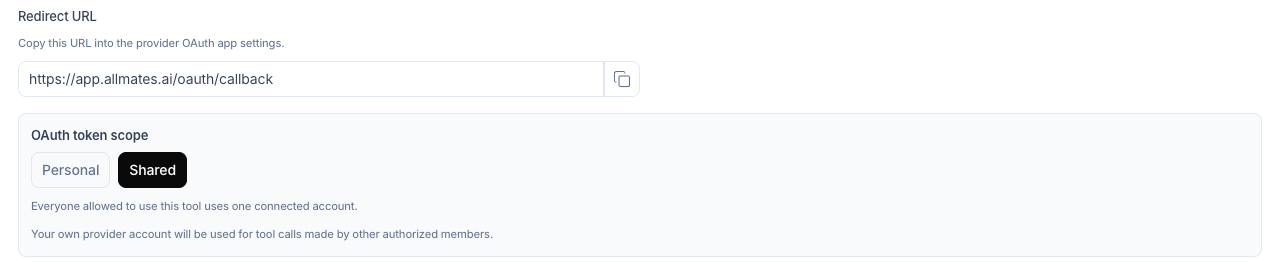
The Shared OAuth connection panel
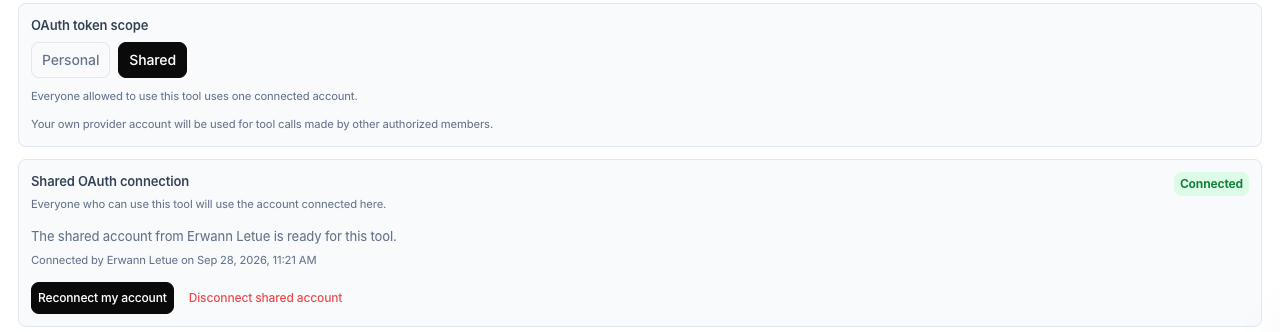
With Shared selected, the tool settings show the Shared OAuth connection panel: "Everyone who can use this tool will use the account connected here." A status tag tells you where the connection stands:
The actions change with the status:
- Save and connect my account: saves the settings, then opens the provider sign-in.
- Reconnect my account: you connected the shared account yourself and sign in again.
- Replace with my account: another member connected it, and your account takes over.
- Disconnect shared account: asks Disconnect the shared account? first. Members can no longer use the tool until a manager connects an account again.
- Retry: shown on Refresh failed, because a renewal failure is often temporary.
Change the scope after installation
A tool manager can switch an existing tool between Personal and Shared. The app asks for a confirmation:
- Switch to personal authentication? "The shared account connected by <member> will be disconnected once you save. Each member will then have to connect their own account."
- Switch to shared authentication? "Personal connections will no longer be used. Once you save, connect the account that everyone allowed to use this tool will share."
Other people see the choice locked, with "Only a tool manager can change this setting."
What members see
A person who opens the tool settings without managing the tool sees the panel in read-only mode, for example "This tool uses the shared account connected by <member>. Only a tool manager can change it."
In a conversation:
- Personal: the first time a Mate needs the tool, the reply offers Connect my account, or Continue without tool. After a sign-in, the Mate retries. When the access expires, the button reads Reconnect account. In a shared conversation, the others see "<member> needs to connect their account before I can run this request."
- Shared: nobody is asked to connect. If the shared connection is missing or broken, the reply says so, for example "<tool>'s shared connection has not been configured yet.", then "Ask a tool manager to restore the shared connection." A tool manager gets Open tool settings instead.
Your connections
Click your avatar at the bottom of the left rail to open Account, then open Connections. The page lists every account and credential you saved, with its type: OAuth, Shared OAuth (a shared account you connected), Tool credentials or Personal credentials. From each row you can Open tool, Edit a saved credential or Delete it. Deleting a Shared OAuth row removes the tool for everyone until a tool manager reconnects an account. Add a personal credential saves a value before any Mate asks for it.
Who can see a credential
- Member values are visible to that member only, not to organization admins.
- Organization values are visible again to the tool's Owners and Admins, so they can review and correct them. Give those roles accordingly.
- People without the Owner or Admin role on the tool never see its keys or passwords.
- A saved OAuth client secret is never shown again: to change it, type a new one.
- Some older REST tools show Legacy runtime preserved: you can edit the name and descriptions, or click Create a new clean instance to move to the current settings.
Good to know
- Rotate a key in this order: create the new key at the provider, save it in the tool, test with a Mate, then revoke the old key.
- Give a tool the narrowest access that works: read-only accounts and minimal OAuth scopes.
- Deleting a tool does not revoke anything at the provider. Revoke the key or the OAuth access there too.