Generating images with the image generation tool
Give a Mate an image generation tool, then ask it to create or edit images right in the conversation.
Last updated About 13 hours ago
An image generation tool lets a Mate create an image from a description, or edit an image that you attach, right in the conversation. The images come back as attachments that you can open and download. This article shows how to give a Mate an image tool and how to ask for good images.
This page replaces the former article about "Image-gen Mates": image generation is a tool that you attach to any Mate, not a kind of Mate.
Choose and install an image tool
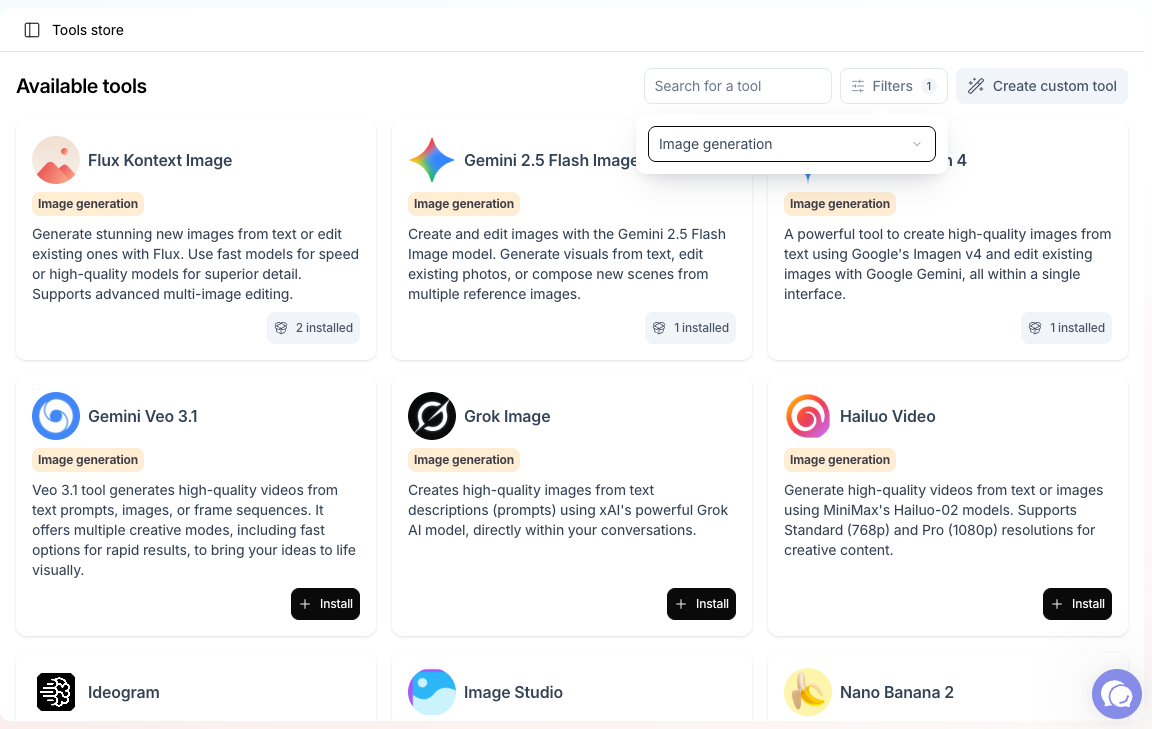
The Tool Store has several image tools, in the Image generation category. Each one uses a different image model. Its Overview tab says what it does best: photorealism, text in images, editing, combining several images.
Installing a tool needs tool-management rights: the Expert plan by default; your organization's plans may differ.
- In the sidebar, open Mates & tools, then Tools Store.
- Filter by the Image generation category and open a tool to read its Overview and How to use tabs.
- Click Install. If the tool asks for setup, fill it in, then click Install.
- In the Attach {name} to Mates dialog, click the Mates that should create images, then click Save access.
To attach an image tool you already installed, open the Mate, then its Tools tab, then Add a tool.
Using your own key for a tool is available with the Enterprise offer. See "Using your own keys for tools".
Create an image
- Open a conversation with a Mate that has an image tool.
- Describe the image you want. The more precise, the better:
- the subject and the scene,
- the style: photo, illustration, flat icon, watercolor...
- the colors, the light, the mood,
- the format: square, portrait or landscape,
- any text that must appear in the image, between quotes.
- The Mate calls the tool and adds the image to its reply, as an attachment.
- Ask for changes in plain words: "Same image, but at night", "Make the logo bigger".
Example: "Create a photorealistic image of a cyclist on a mountain road at sunrise, landscape format, warm light, no text."
Edit or combine images
Most image tools can also work from your own pictures.
- Attach one or more images to your message.
- Say what to change: "Remove the background", "Put this product on a marble table", "Combine these two photos into one poster".
The Mate sends your attachments to the tool and returns the new image.
Good to know
- The result depends on the model. If a tool struggles with a style or with text, try another image tool of the store.
- Check what the image shows before you publish it: generated images can contain errors, such as wrong text or extra details.
- To see what the Mate asked the tool, click Tools called under its message. You can read the prompt the Mate sent.