Configuring Mate Capabilities
Set a Mate's model, temperature, thinking effort, answer length, context and widgets, and learn when your changes apply.
Last updated 14 days ago
The Parameters tab of a Mate sets how it thinks and what it can do: its model, its creativity, its reasoning effort, the length of its answers, the context it reads and the formats it can produce. This article explains each setting and when your changes reach your team. It is for members who manage Mates. You write the Mate's instructions on the Instructions tab (see "Creating a Mate"), and the Mate Builder from the Mates Store can draft them for you.
Editing a Mate needs the Mate management permission and the Owner or Admin role on that Mate. In the default plan catalog, the Mate management permission comes with the Expert plan. Your organization's plans may differ.
Open the Parameters tab
- In the sidebar, click Mates & tools, then Organization's Mates.
- Click the Mate you want to configure.
- Open the Parameters tab.
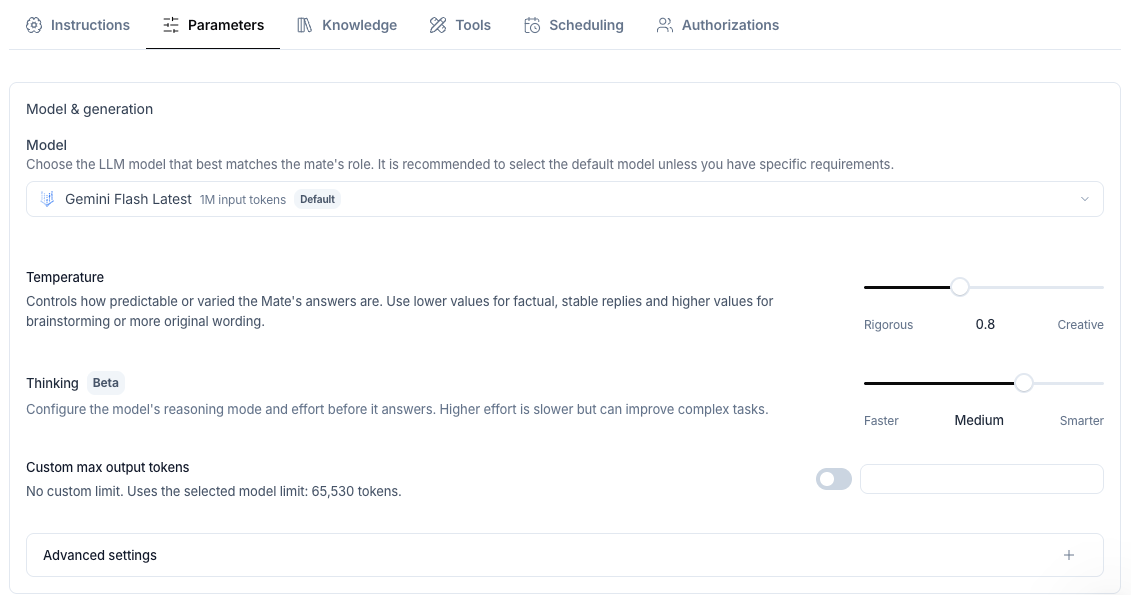
The tab shows one card, Model & generation. At the bottom of the card, the Advanced settings block opens the context, widget and optimization settings.
Choose the model
- Open the Model list.
- Select a model.
Each option shows the provider, the model name and the number of input tokens the model accepts.
- The first option carries a Default tag. It is your organization's default model. A Mate on this option follows the default: when an organization admin changes the default model, the Mate uses the new one.
- A model marked Deprecated is going to be removed. You cannot select it.
For help choosing a model, see "Introduction to the LLM Model Guide" and "Current lineup". Owners and Admins choose the models that your organization offers: see "Managing your organization's models".
Set the temperature (Rigorous to Creative)
The Temperature slider controls how predictable or varied the answers are.
- Move it toward Rigorous for factual, stable answers.
- Move it toward Creative for brainstorming and original wording.
The slider range depends on the model. The slider is hidden when the model uses a fixed temperature. It is also hidden when thinking is on and the model does not accept a temperature together with thinking.
Set the thinking effort
The Thinking row (with a Beta tag) shows only for models that can reason before they answer.
- Move the slider from Faster to Smarter to choose the effort. The levels are None, Low, Medium, High, XHigh and Max. Each model offers only the levels it supports.
- None turns thinking off. It is not offered for models that always think.
- Some models also offer a thinking type, for example Adaptive.
A higher effort is slower but can improve complex tasks.
Limit the answer length
By default, a Mate can write answers up to the limit of its model. The description under Custom max output tokens shows that limit.
- Turn on Custom max output tokens.
- Enter a whole number, up to the model limit.
If you later select a model with a lower limit than your value, the custom value is removed. A message confirms: "Max output tokens reset to model limit".
Advanced settings
Click Advanced settings to open the block. Each line is a switch.
Context
Choose which background information the Mate may use while it answers.
- Organization context: the organization's instructions, policies and shared business context.
- Workspace context: the context of the workspace that holds the conversation.
- Project context: the resources and instructions of the conversation's project.
- Chat members: the names and roles of the participants.
- Mention rules: the rules that tell the Mate when to answer a mention.
A conversation can also turn the organization and workspace context on or off. To know which setting wins, see "Choosing the context a Mate sees".
Widgets
Choose which rich formats the Mate may produce in addition to text.
- HTML: rich, self-contained HTML documents.
- SVG: diagrams, schemas and technical figures.
- Charts: charts built from structured data.
- Carousel: swipeable sets of items or cards.
- Documents: document-style answers for long, structured content.
Optimization
This group shows only on organizations where the option is turned on.
- Compression: reduces the size of long content the Mate reads.
- Context compaction: marked Coming soon. You cannot change it yet.
When your changes apply
Every setting on this tab saves automatically. There is no Save button. A Saving... label shows while a save runs, and Not saved with Retry shows if a save fails.
Saved changes are a draft. They reach conversations only when you click Update at the top of the Mate page. Update is inactive when the Mate has no pending changes.
The last row matters: if you have edits that you do not want to publish yet, a rename or a tool change publishes them too.
Mates created before capabilities existed
A Mate that has never had its capabilities saved uses the defaults: every context, widget and optimization switch is on. Nothing changes until you edit the tab.
Best practices
- Match the widgets to the job. Turn off HTML or Charts for a Mate that only writes text.
- Keep sensitive Mates focused. Turn off Organization context or Workspace context for a Mate that must work only with what the conversation contains.
- Test before you publish. Change the settings, check them in a duplicate of the Mate, then click Update on the original.
Related articles
Was this helpful?
Still need help? Ask the team