How to Rename a Mate
Rename a Mate from its page or the Mates list, and know that a rename also publishes its pending changes.
Last updated 15 days ago
A Mate's name tells your team what it does. When its role changes, rename it. This article shows the steps and what else happens when you rename. It is for members with the Owner or Admin role on the Mate.
Rename from the Mate page
- In the sidebar, click Mates & tools, then Organization's Mates.
- Click the Mate you want to rename.
- Click the Mate's name (with the chevron) above the tabs.
- Click Rename.
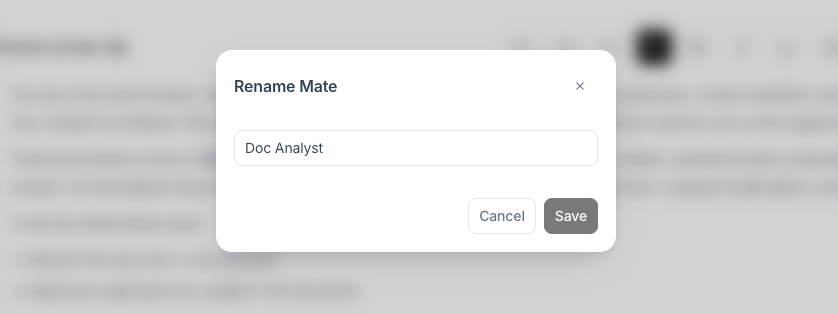
- In the Rename Mate dialog, type the new name.
- Click Save.
A "Mate renamed" message confirms the change.
You can also rename from the list of your organization's Mates: click ⋮ on the Mate's card, then Rename.
Rules for the name
- The name is required.
- It has 50 characters at most.
- It must differ from the current name.
What happens when you rename
- The new name shows at once in the Mates list and in conversations.
- The Mate's pseudo, shown under its name on the Mate page, does not change.
- A rename also publishes the Mate's pending changes. If you edited the instructions, the model or other settings without clicking Update, the rename applies those edits too. If you are not ready to publish them, rename later.
Related articles
Was this helpful?
Still need help? Ask the team