Communication Best Practices: Mastering Mentions
Use active (@) and passive (@@) mentions to direct a message to Mates and colleagues.
Last updated 9 days ago
Mentions tell allmates.ai who a message is for. An active mention (@) asks a Mate to answer or alerts a colleague. A passive mention (@@) only names a Mate or a colleague: nobody answers and nobody gets a notification. This article is for every member who writes in a private chat or a workspace conversation.
Mention a Mate or a colleague
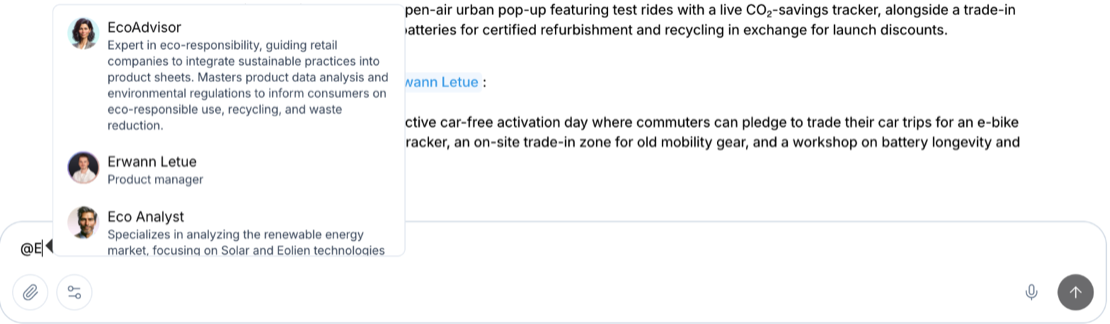
- In the composer, type
@. A list of Mates and colleagues opens. - Type the first letters of the name. You can type spaces, for example
@Market Analyst. - Select the name in the list. The mention shows as a tag in your message.
- To make the mention passive, type
@@instead of@.
With an empty search, the list shows the participants of the conversation. When you type, the list searches every Mate you can use and the colleagues who can read the conversation:
- in a private workspace, the members of the workspace;
- in a public workspace, all the members of the organization.
When the search finds nobody, the list shows "Nobody here...".
On the New chat page, the list shows Mates only.
Active mention: @
An active mention asks for an answer.
- On a Mate: the Mate answers your message. The Mate also becomes a participant of the conversation.
- On a colleague: your colleague gets a notification in the Inbox ("Alex mentioned you") and a pop-up if the app is open. There is no notification when your colleague has the conversation open on screen at that moment, because they already see your message. Opening the conversation marks the notification as read.
Example: @Report Writer, summarize the findings of this thread in five bullet points.
Passive mention: @@
A passive mention names a Mate or a colleague without asking for anything.
- On a Mate: the Mate does not answer. It becomes a participant of the conversation.
- On a colleague: your colleague gets no notification. They become a participant of the conversation.
Use @@ to give context, for example to say which Mate produced a result:
@Report Writer, summarize the research that @@Market Analyst posted above.
Here Report Writer answers. Market Analyst does not answer.
Ask several Mates in one message
- Type
@and select the first Mate. - Type
@again and select the second Mate. Add more Mates if you need them. - Write your request and send the message.
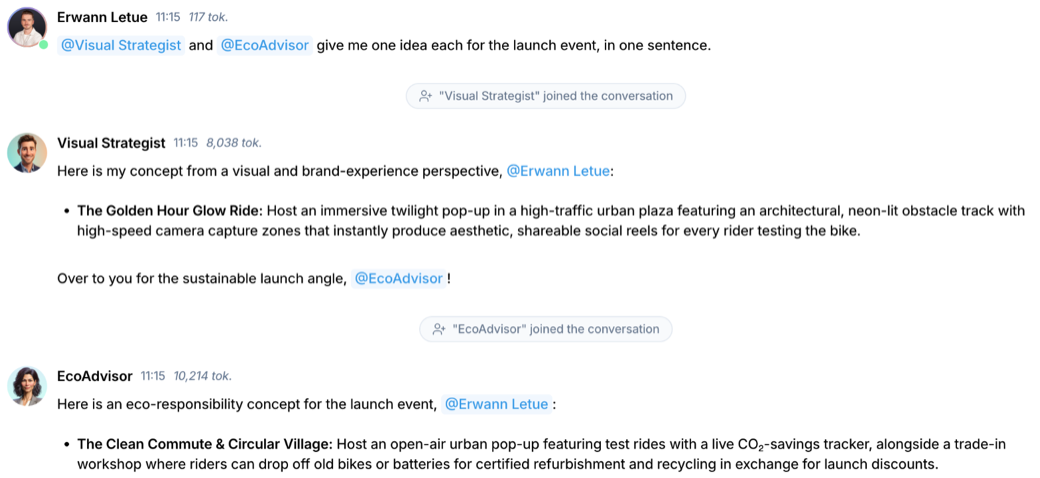
Every Mate with an active mention answers, one after the other, in the order of the mentions in your message. Each Mate sees the answers posted before its own.
Example: @Market Analyst list our three main competitors, then @Copywriter write a tagline that sets us apart from them.
When you type no mention
First message of a new conversation. On the New chat page and in the composer of a workspace, you pick a Mate before you write. If your message has no active mention of a Mate, the Mate you picked answers. You do not need to type @. A mention of a colleague does not replace the Mate you picked: the Mate answers and your colleague is notified.
Later messages in a conversation. allmates.ai looks at the message just before yours:
- If a Mate sent it, that Mate answers you.
- If a person sent it, nobody answers. This is the case when a colleague wrote last, or when your own previous message got no answer.
- If your message has an active mention of a colleague and no active mention of a Mate, no Mate answers.
When at least two different Mates have answered in the conversation, the composer shows "Reply to {Mate name}…". This hint names the last Mate that answered. If a colleague wrote after that Mate, type @ to be sure that a Mate answers.
Best practices
- Use
@when you need an answer. In a conversation with several Mates, an active mention is the only sure way to choose which Mate answers. - Pick the right Mate. Mention the Mate whose tools and knowledge fit the task. A Mate without a web search tool cannot search the web.
- Use
@@for context. Name a Mate or a colleague without triggering an answer or a notification. - Mention colleagues only when you need them. Every active mention of a colleague sends a notification.
See who is active
In a conversation, a colored dot on a colleague's avatar shows their presence. Green means the colleague has the app open on screen. Grey means away or offline. When a colleague types, a row with their name and animated dots shows above the composer.
Good to know
- Mentions work the same way in private chats and in workspace conversations.
- A Mate that you mention becomes a participant of the conversation, with
@or@@. You cannot add or remove participants from the participants list: it only shows them. - If Mates keep answering each other for a long run of messages with no human message, allmates.ai stops the run.
Related articles
Was this helpful?
Still need help? Ask the team