Adding Attachments to Your Messages
Attach files, images and screenshots to a message with the paperclip, drag and drop, or copy and paste.
Last updated 9 days ago
Documents, images and other files give your team and your Mates the context they need. This article shows the ways to attach files to a message and which files you can send. It applies to private chats and workspace conversations.
File uploads come with the Standard plan and above in the default plan catalog. Your organization's plans may differ.
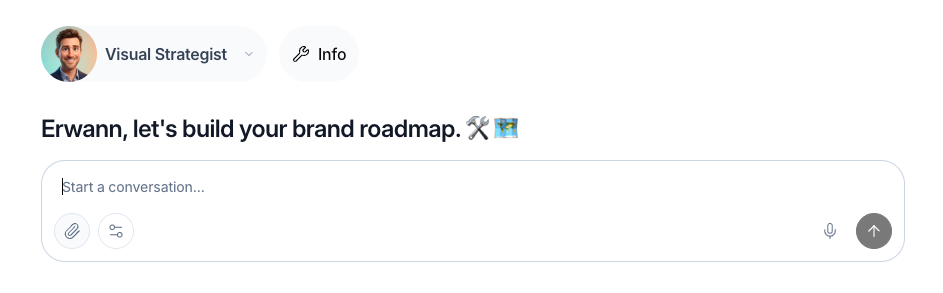
Ways to add attachments
1. The paperclip button
- Click the paperclip (Attach files) in the message input bar.
- Your computer's file browser opens. Select one or more files.
- Click Open (or Choose).
The files appear in the message input area, ready to send with your message.
Best for: files you know where to find, and several files at once.
2. Drag and drop
Drag one or more files from your desktop or file explorer. Drop them on the conversation or on the message input bar. The files upload as attachments to your message.
Best for: files already visible on your desktop or in an open folder.
3. Copy and paste files
- In your file explorer (Finder on Mac, File Explorer on Windows), select a file and copy it (Cmd+C or Ctrl+C).
- In allmates.ai, click the message input bar and paste (Cmd+V or Ctrl+V).
The file uploads as an attachment.
Best for: a file you just saved, without browsing for it again.
4. Paste images and screenshots
Copy an image from any app, or take a screenshot to your clipboard. Paste it (Cmd+V or Ctrl+V) in the message input bar. The image appears as an attachment, ready to send.
Best for: mockups, diagrams and screenshots of error messages.
Pasting long text
When you paste a long text in the message box, allmates.ai turns it into an attachment instead of filling the message box.
The attachment is a Markdown file named pasted-content.md. It shows above the message box, like any other attachment. Type your question in the message box, then send. The Mate reads the pasted text from the attachment.

Shorter texts go into the message box as usual.
Good to know
- The long paste becomes an attachment only where you can add files to a message. Where you cannot add files, the text goes into the message box.
- Pasting a file, for example an image copied from another app, adds that file as an attachment, whatever its size.
- To keep a long text inside the message itself, paste it in shorter parts.
- To remove the pasted text before you send, remove the
pasted-content.mdattachment.
Supported files
You can attach most file types, up to 1000 MB per file. Executable and installer files (for example.exe, .dmg or .sh), system files and empty files are refused with a message.
The platform converts PDF, Word (DOC, DOCX), PowerPoint (PPT, PPTX), Excel (XLS, XLSX), CSV and Markdown files to Markdown text, so a Mate can read their text whatever its model. What a Mate can read from images, audio and video depends on its model.
Where it works
These methods work in private chats and in workspace conversations.
To give a Mate files that it keeps for every conversation, add them to its knowledge instead. See "Supercharging Mates with Knowledge (Overview)".
Related articles
Was this helpful?
Still need help? Ask the team