How to Enable and Troubleshoot Notifications
Allow browser notifications in allmates.ai, your browser and your system, and fix them when they do not appear.
Last updated 9 days ago
allmates.ai can show your notifications as browser notifications on your computer. You then see a mention or a finished scheduled run even when you work in another tab or another app. This guide explains how to enable browser notifications, when they appear, and what to check when they do not appear.
When browser notifications appear
A browser notification appears when these conditions are true:
- allmates.ai is open in a browser tab.
- That tab is not in focus. For example, you work in another tab, another window or another app.
- You allowed notifications in allmates.ai, in your browser and in your operating system.
When the allmates.ai tab is in focus, you see only the banner inside the app. Keep an allmates.ai tab open: when you close it, you get no notification. The Inbox keeps every notification until you come back. allmates.ai does not send notifications when the app is closed.
Click a browser notification to go back to the allmates.ai tab and open the related page.
The 3 levels of permission
For browser notifications to work, you must allow them at three levels:
- In allmates.ai: you accept the prompt in the Inbox.
- In your web browser: the browser allows allmates.ai to send notifications.
- In your operating system: the system allows your browser to show notifications.
Step 1: enable notifications in allmates.ai
- At the top of the sidebar, click the Inbox icon.
- At the top of the Inbox, the prompt Enable browser notifications? appears.
- Click Enable.
- Your browser asks for permission. Click Allow.
- A confirmation reads Notifications enabled.
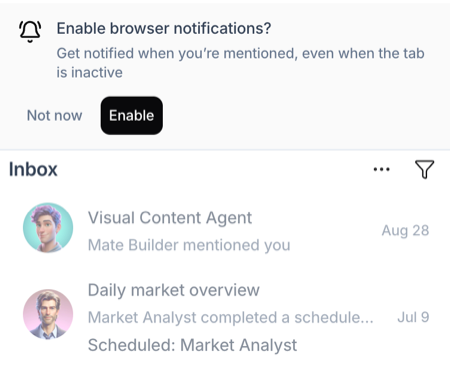
If you click Not now, the prompt does not come back in this browser. To enable notifications later, allow them in your browser settings (step 2), then reload the allmates.ai tab.
If the app shows Notifications not enabled, your browser blocked the request. Allow notifications in your browser settings (step 2), then reload the allmates.ai tab.
Step 2: allow notifications in your browser
The quick way (Chrome, Edge)
- In the address bar, click the icon on the left of the allmates.ai address.
- Open the site settings.
- Set Notifications to Allow.
- Reload the allmates.ai tab.
Google Chrome (Windows and macOS)
- Go to Settings > Privacy and security > Site settings > Notifications.
- Make sure that sites can ask to send notifications.
- Make sure that the allmates.ai address (usually
app.allmates.ai) is in the list of sites that can send notifications, not in the blocked list.
Microsoft Edge (Windows and macOS)
- Go to Settings > Cookies and site permissions > Notifications.
- Make sure that the allmates.ai address is in the Allow list. If it is in the Block list, move it to the Allow list, then reload the allmates.ai tab.
Safari (macOS)
- Go to Safari > Settings > Websites > Notifications.
- Find the allmates.ai address in the list and set it to Allow.
Step 3: allow notifications in your operating system
Windows 10 and 11
- Open Settings > System > Notifications.
- Make sure that notifications are On.
- In the list of senders, make sure that your browser (Chrome, Edge or another) is On.
macOS
- Open System Settings > Notifications.
- Select your browser in the list of applications.
- Make sure that Allow notifications is on. You can also choose the alert style here.
Phones and tablets
On a phone or a tablet, allmates.ai shows your notifications in the app only: the banner, the unread badges and the Inbox. Your phone does not show allmates.ai notifications in its notification center, even if you add allmates.ai to your home screen. Open the Inbox to see what you missed.
Troubleshooting: why do I not receive notifications?
If you enabled notifications but none appear, check these points:
- The tab is in focus. A browser notification appears only when the allmates.ai tab is not in focus. When you look at the tab, the banner inside the app replaces it.
- You changed the permission in the browser settings. Reload the allmates.ai tab after the change.
- Focus modes and Do Not Disturb. On macOS, check that no Focus mode (for example Work, Sleep or Do Not Disturb) silences your browser. Go to System Settings > Focus. On Windows, check that Do not disturb (Windows 11) or Focus Assist (Windows 10) is off, or that its rules let your browser through.
- Private browsing. Browsers block notifications in private or incognito windows. Use a standard window.
- Screen sharing. Most operating systems hide notifications while you share or mirror your screen.
- The conversation is already open. You get no mention notification for a conversation that you have open in front of you.
- Another organization. Notifications belong to the organization that you have open. Switch organization to see the notifications of the other one.
Good to know
- The prompt in the Inbox appears only once per browser. It does not appear when notifications are already allowed.
- Each browser and each computer has its own permission. Enable notifications on each of them.
Related articles
Was this helpful?
Still need help? Ask the team