Starting Your First Chat with a Mate
Start a private chat with a Mate, choose the Mate new chats open on, send your first message and find your chats again.
Last updated About 19 hours ago
A private chat is a conversation between you and one or more Mates. Only you can see it. This article shows how to start a private chat, send your first message and find your chats again. It is for every member, from the first day.
Start a private chat
- In the sidebar, click New chat. The new-chat page opens.
- Above the composer, click the Mate picker and choose a Mate. You can search the list with Search Mates….
- In the composer (Start a conversation...), write your message.
- Press Cmd/Ctrl + Enter, or click the send button.
allmates.ai creates the private chat and opens it. The Mate you picked answers. You do not need to type @ in this first message.
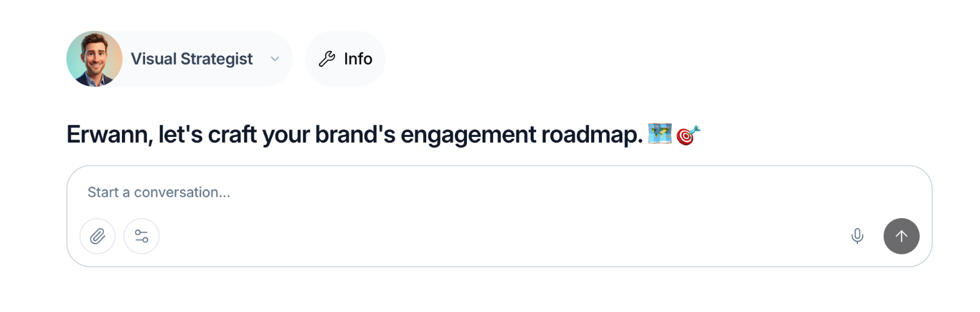
The chat gets a name from your first message. allmates.ai then replaces it with a short title.
Choose the Mate
The Mate picker opens on your default Mate for new chats:
- If your organization fixes the default Mate for every member, the picker opens on it.
- Otherwise, if you chose an option in the Default Mate for new chats card of your preferences, the picker follows it.
- Otherwise, if your organization set a default Mate, the picker opens on it.
- Otherwise, it opens on the last Mate you chose.
- On your first visit, it opens on a default Mate, or on the first Mate you can use.
When you open a new chat from a Mate, for example from a Mate card, from the search or from a link, the picker opens on that Mate. You can always choose another Mate in the picker before you send your first message.
Next to the picker, buttons show the tools and the knowledge files of the selected Mate. The information button shows the Mate description, with two buttons: More information opens the Mate page, and Schedule plans a recurring run of the Mate.
If you type a single @ mention of a Mate in your message, the picker switches to that Mate.
If you have access to no Mate, the page shows "No Mates available". Contact an Owner or Admin of your organization.
Change your default Mate
- At the bottom of the left rail, click your avatar. Your Account page opens.
- In the Account sidebar, under Personal, click Preferences.
- In the Mates section, in the Default Mate for new chats card, open the list.
- Choose one option:
- Organization default: the Mate your organization chose. The option shows its name. It is in the list only when your organization set a default Mate.
- Last used Mate: the last Mate you chose in the Mate picker.
- A Mate under Mates: every new chat opens on this Mate. You can search the list.
The choice is saved at once. It applies to the organization you are in.
Your organization can fix the default Mate for every member. The card then shows "New chats open on <Mate>, set by your organization." and you cannot change it. You can still choose another Mate in the picker. Owners and Admins also see Open organization preferences, which opens the setting.
If you cannot use your default Mate, for example because it is no longer shared with you, the picker opens on your last used Mate, or on the first Mate you can use. To set the default Mate of the organization, see "Organization settings".
Continue the conversation
- Write your next message in the composer and send it.
- In a chat with one Mate, the Mate answers every message. You do not need to mention it.
- To ask another Mate, type
@and select it. That Mate joins the chat and answers. To learn more, read "Communication Best Practices: Mastering Mentions". - If your plan includes file uploads, you can attach files to your messages.
- A link can also open a chat with a message already typed in the composer. See "Prefill Editor via URL".
Change the send shortcut
By default, Cmd/Ctrl + Enter sends the message and Enter adds a new line. To send with Enter instead, see "Customizing Your Message Send Shortcut".
Find your private chats
Your private chats show in the sidebar. The place depends on your plan:
- If your plan includes workspaces, click Private chats at the top of the sidebar. The list opens in a panel.
- Otherwise, the list fills the sidebar.
The list shows Pinned chats first, then the other chats by date: Today, Yesterday, Last week and so on. You can also find a chat by its title with the search (Cmd/Ctrl + K).
Manage a private chat
Hover a chat in the list and click the Actions menu (…):
- Rename: gives the chat a new name.
- Pin / Unpin: keeps the chat at the top of the list.
- Delete: asks you to confirm, then deletes the chat.
In an open chat, click the chat title to get the same actions and Copy / Move, which moves the chat to a workspace, or duplicates it there, so that your colleagues can see it. See "Managing Your Workspace Conversations" for the steps.
Troubleshooting
- The Mate does not answer. Check that a Mate is selected in the picker, then send the message again. If a message fails, the app keeps it in the composer so that you can send it again.
- The answer is not relevant. Rephrase your question or give more context.
Good to know
- Private chats have no workspace members: nobody else can see them, even an Owner or Admin.
- A Mate that you mention with
@or@@becomes a participant of the chat.
Related articles
Was this helpful?
Still need help? Ask the team