Organization settings
Change your organization's name, photo and description, choose the default Mate and the default language, and see what reaches your Mates.
Last updated About 19 hours ago
The organization settings hold the identity of your organization: its name, its photo and its description. The name and the description also give context to every Mate. The settings also hold the preferences that apply to every member: the Mate new chats open on and the default language of the Mates' answers. This article shows how to open the settings and fill in each field. It is for organization Owners and Admins.
The title of this article changed: it was "Configuring Your Organization Settings". The article is now in the Administration & Security collection.
Open the organization settings
Only Owners and Admins can open the organization settings.
- At the top of the sidebar, click the name of your organization.
- Click Settings.
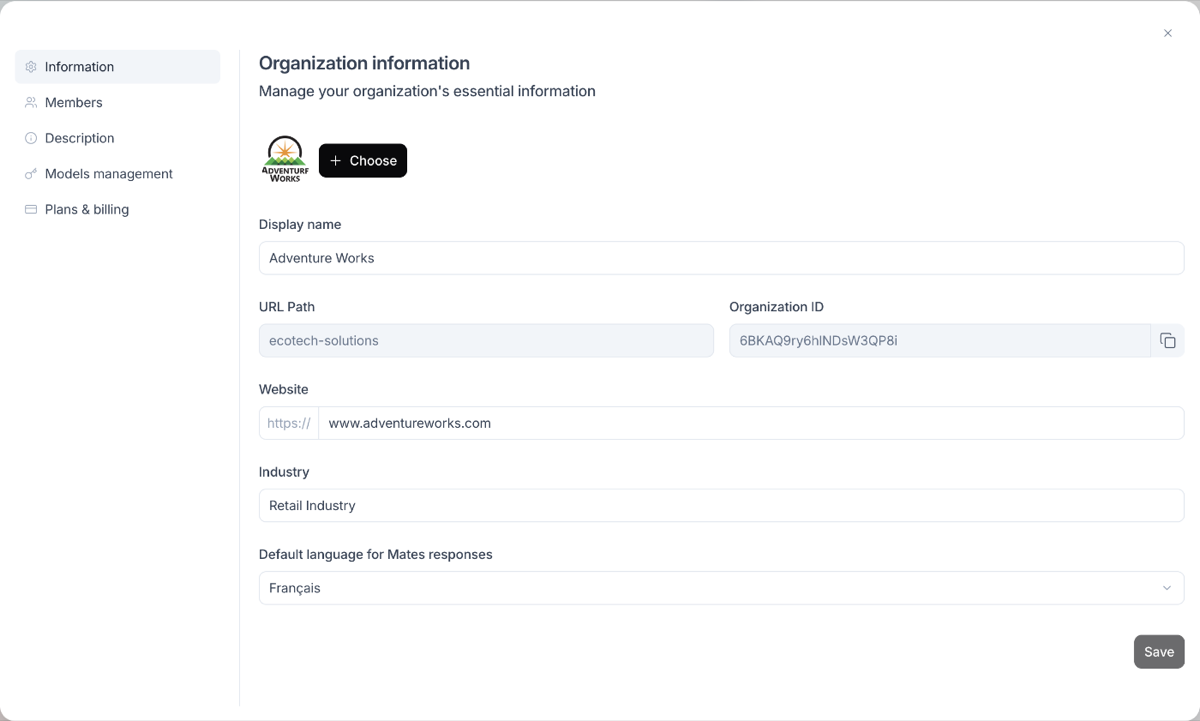
The settings open on the Information tab. The other tabs are Members, Description, Preferences, Models management and Plans & billing.
Information tab
The Organization information tab holds the identity of the organization.
Photo
- Click the upload button next to the photo.
- Choose an image file: PNG, JPEG, WEBP or GIF, up to 3 MB.
The photo is saved at once: you do not need to click Save. It shows in the organization menu for every member. To replace the photo, upload another image. You cannot remove a photo without replacing it.
Fields
- Display name: the name of your organization, at least 3 characters. It shows at the top of the sidebar for every member, and Mates use it.
- URL Path and Organization ID: read-only. Click the copy button to copy the ID, for example when you contact support.
- Website and Industry: optional information about your organization.
Click Save to apply your changes.
Clearing Website or Industry and saving does not erase the old value.
The default language of the Mates' answers is no longer on this tab. It is in the Preferences tab, Language section.
Description tab
The Organization description is the most important field for the quality of the Mates' answers. Mates use it, with the organization name, in their answers.
- Open the Description tab.
- In Organization's description, describe your organization. The editor supports Markdown: bold, headers, lists and links.
- Click Save.
The description is required.
What to write
- your mission and your core business;
- your main goals;
- your industry, your key products and your target audience;
- the tone and the style you expect from Mates.
A precise description gives more relevant and accurate answers.
To check the result, ask a Mate "What does our organization do?" in a new chat.
Preferences tab
The Preferences tab holds the preferences that apply to every member of your organization. It has two sections: New chats and Language. Each section has its own Save button.
New chats
Choose the Mate every new chat opens on.
- Open the Preferences tab.
- In Default Mate, open the list and choose a Mate. You can search the list. To remove the default, choose No default (each member's last used Mate).
- Turn Members can choose their own default on or off.
- Click Save.
What members get:
- A default Mate, members can choose: new chats open on the default Mate. A member can choose another default in their Account preferences.
- A default Mate, members cannot choose: every new chat opens on the default Mate. Members see it in their Account preferences but cannot change it. They can still choose another Mate in the Mate picker, and a link to a Mate still opens a chat on that Mate.
- No default: new chats open on each member's last used Mate, or on the default the member chose. Members can choose their own default is available once you choose a default Mate.
The list shows the Mates that you can use. A member who cannot use the default Mate gets another Mate: their last used Mate, or the first Mate they can use. Members choose their default in their Account preferences: see "Starting Your First Chat with a Mate".
The section can show two messages:
- "<Mate> is not shared with every member.": some members cannot use the default Mate and get another Mate. To give every member access, share the Mate with "All organization members". See "Mastering Mate Authorizations".
- "The default Mate is not among your Mates": the Mate was deleted, is not deployed, is hidden or is not shared with you. Members get another Mate until you choose a new default and click Save.
Language
Choose the default language of the Mates' answers for your organization.
- In the Preferences tab, Language section, open the Default language list.
- Choose one of the 19 languages.
- Click Save.
Mates answer in this language, unless a workspace sets its own language or a member chooses theirs for their private chats. The change applies to new chats: a chat keeps the language it started in. The default language does not change the interface language of the members. See "Changing the interface language and theme" for the full rule.
What reaches the Mates
Mates use the Display name and the Organization's description in their answers.
A workspace can leave out the organization context: its Include organization context option is in the workspace settings. In such a workspace, Mates do not receive the organization name and description. A conversation can also turn the organization context on or off, in the Context scope section of its information panel. See "Choosing the context a Mate sees" for every option and which setting wins.
Other tabs
- Members: invite members, share the invitation link, change roles and plans, suspend members. See "Managing members".
- Models management: the AI models your organization can use.
- Plans & billing: your subscription and your credits. See "Buying credits and managing your subscription".
Related articles
Was this helpful?
Still need help? Ask the team