Scheduling Your Mates for Automated Workflows
Schedule a Mate to run a prompt at a set time and frequency, manage your schedules and follow their runs.
Last updated 2 days ago
A schedule runs a Mate on its own, at the time and frequency you choose: a daily standup summary, a weekly market report, a monthly review. At each run, the Mate executes your prompt and posts the answer in a private chat or in a workspace. This article shows who can schedule a Mate, how to create and manage schedules, and how to follow their runs.
Who can schedule a Mate
- Mate administrators (members with the Owner or Admin role on the Mate) can always schedule it.
- Other members with User access to the Mate can schedule it when a Mate administrator turns on Let members schedule this Mate.
Each member manages the schedules they created from Scheduled Mates in their account.
Let members schedule a Mate (Mate administrators)
- Open the Mate page and the Scheduling tab.
- Turn on Let members schedule this Mate.
When you turn it off, a dialog shows how many member schedules will pause. Click Turn off to confirm. Member schedules pause at once; a run already in progress finishes. Your own schedules and those of other Mate administrators keep running.
This switch applies at once. It also publishes the Mate's pending changes: edits made without Update go live with it.
Create a schedule
You can start from four places:
- The Mates list: on the Mate's card, click Schedule.
- Home: select the Mate, click Info, then Schedule.
- Your account: open Scheduled Mates and click Create schedule, then select the Mate.
- The Mate page (Mate administrators): open the Scheduling tab and click Create schedule.
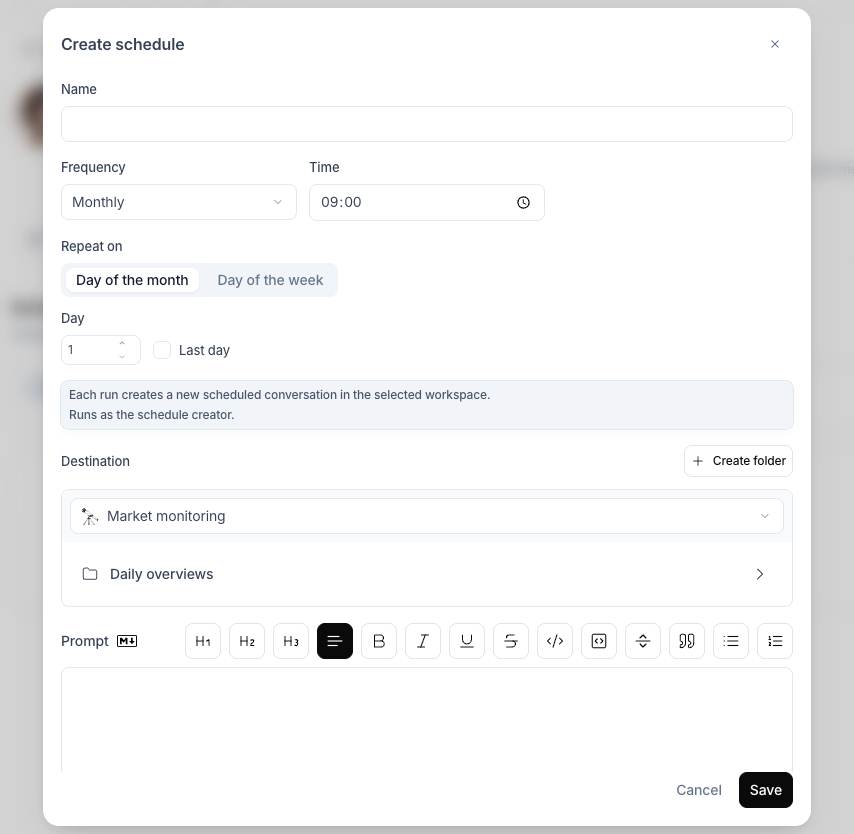
Then fill in the dialog:
- Name: a clear name, for example "Weekly market summary".
- Frequency: Hourly, Daily, Weekdays, Weekly or Monthly.
- Time: the time of the run (not asked for Hourly).
- For Weekly, the Day. For Monthly, choose Repeat on:
- Day of the month: a day number, or Last day. A month without that day is skipped.
- Day of the week: for example the First Monday of the month.
- Destination: Private chat, or a workspace and one of its folders. Each run in a workspace creates a new scheduled conversation there.
- Prompt: what the Mate must do at each run. You can mention other Mates in the prompt.
- Click Create schedule (from the Mates list or your account) or Save (from the Scheduling tab).
The schedule is active as soon as you save it. The time zone is the one of your browser when you create the schedule.
Manage your schedules
Open Scheduled Mates in your account: click your profile picture in the sidebar, then Scheduled Mates. The page lists the schedules you created in the current organization.
On each row, you can:
- pause or enable the schedule with its switch,
- edit the schedule,
- Export schedule from the row menu,
- Delete schedule from the row menu.
From the More schedule actions menu at the top of the page, you can Import schedules from files exported earlier, or Export all schedules.
A Mate administrator also sees every schedule of the Mate on its Scheduling tab, grouped as Your schedules and Members' schedules. The prompt, run history and destination of a member's schedule stay private to its creator. An administrator can pause a member's schedule; only its creator can enable it again.
Follow the runs
Expand a schedule's row to see its Run history: the Status of each run, when it was triggered, who it ran as, and an Open conversation link.
You also get a notification after each run: Scheduled run completed or Scheduled run failed.
When a schedule stops
The platform pauses a schedule in these cases, and the row says why:
- member scheduling was turned off on the Mate,
- its creator no longer has access to the Mate,
- a recipient is no longer an active member,
- the organization was deactivated.
Good to know
- A scheduled run uses the Mate's published configuration, including its knowledge and tools.
- A schedule created in another way (for example, imported) can show Custom schedule as its frequency. When you edit it, pick one of the standard frequencies.
Tips
- Write a structured prompt. No one is there to clarify, so state the expected output: "a bulleted list of the top three trends, then one recommendation".
- Use Mate Knowledge. Attach reference files to the Mate so each run has them.
Related articles
Was this helpful?
Still need help? Ask the team