Understanding credits
What consumes credits, where to see your balance, what the low-credit alerts mean and what stops at zero.
Last updated About 6 hours ago
Your organization uses credits to pay for what its Mates do. This article explains what consumes credits, where to see the balance, what the low-credit alerts mean and what stops when the balance reaches zero. It is for organization Owners and Admins, who manage the credits. Members see the effect only when the balance runs out.
What consumes credits
Two things consume credits:
- Mate replies. Each reply of a Mate consumes credits. A more powerful model consumes more credits per reply than a lighter one.
- Pay as you go tools. Each use of a tool in Pay as you go mode consumes credits. The settings of such a tool show "This tool is billed per usage." In the Toolbox, the Billing mode filter lists these tools. Running a tool on your organization's own vendor key is available with the Enterprise offer. See "Using your own keys for tools".
All usage in your organization draws from one shared balance. The in-app purchase screen shows the prices. See "Buying credits and managing your subscription".
Where to see your balance
Only organization Owners and Admins see the credit balance. Other members do not see it.
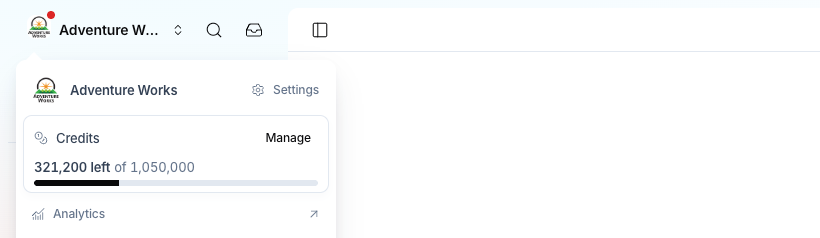
In the organization switcher
- At the top of the sidebar, click your organization's name.
- The Credits card shows the credits left and the credits your organization received. A bar shows the remaining share.
- Click Manage to open the Plans & billing tab of the organization settings.
On the Plans & billing tab
- At the top of the sidebar, click your organization's name.
- Click Settings.
- Open the Plans & billing tab.
The credits card shows Credits remaining with the figure "remaining of received". Below the bar, the card lists where your credits come from: your subscription credits and their renewal date, your Free plan credits, or your top-up credits. A line tells you which credits your organization uses now, for example Using subscription credits or Using top-up credits.
Some organizations see Credits used instead of Credits remaining.
In Analytics
If your organization has Analytics, the Credits dashboard shows your credit consumption over time, by model and by tool. See "Operational Dashboards".
Low-credit alerts
The app warns Owners and Admins when the balance gets low. The alerts come back as the balance keeps dropping.
When an alert is active:
- The Credits card in the organization switcher switches to a warning style. It shows "Running low" with the percentage left, and a Top up button.
- A Credits running low callout shows in the sidebar: "Top up to keep your mates running." Its Top up credits button opens the Plans & billing tab.
You can dismiss the sidebar callout. It shows again at the next alert step.
What happens at zero
When the balance reaches zero:
- Mates stop replying, for every member of the organization.
- A member who writes to a Mate gets this reply: "I couldn't reply: the organization's credit balance is exhausted." An Admin also sees that the billing settings show the options for adding credits. Other members see that an organization admin can review these options.
- Owners and Admins see the Mates paused callout in the sidebar: "Your organization's mates are paused for everyone until you top up." You cannot dismiss this callout.
- The Credits card switches to an error style and shows "Mates paused for the whole organization".
To restart the paused Mates, buy credits or change your subscription on the Plans & billing tab.
Good to know
- The alerts apply to all the credits your organization received: subscription, free plan and top-up credits.
- If the app cannot load your balance, the Credits card says "Couldn't load your credits. Open billing to check your balance."