Exporting and Importing Mates: Share and Backup Your Configurations
Export a Mate as a .zip file and import it into the same or another organization, and see what the file contains.
Last updated 9 days ago
Export packs a Mate into one .zip file: its identity, its instructions, its avatar and its knowledge files. Import recreates the Mate from that file, in the same organization or in another one. Use it to back up a Mate, to share it with a partner, or to set up several Mates at once.
Exporting and importing need the Mate management permission. In the default plan catalog, this permission comes with the Expert plan. Your organization's plans may differ. To export a Mate, you also need the Owner or Admin role on it.
What the export file contains
Tools are not exported because their connections and credentials belong to your organization.
Export a Mate
- Open the menu of the Mate:
- on the Mate page, click the Mate's name (with the chevron) above the tabs, or
- in the list of your organization's Mates, click ⋮ on the Mate's card.
- Click Export.
Your browser downloads a .zip file named after the Mate. A "Mate exported successfully" message confirms the export.
When you export from the Mate page, the file contains the Mate as it is on that page, including edits that you have not published with Update.
Import one Mate
- In the sidebar, click Mates & tools, then Create a new Mate.
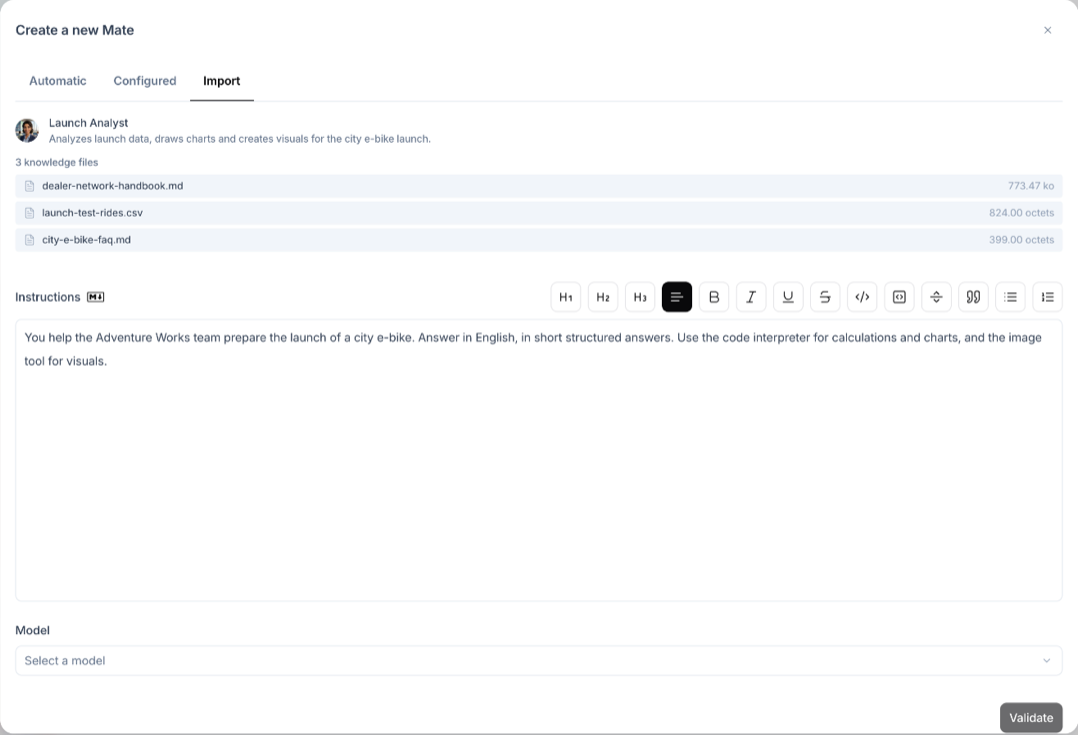
- Open the Import tab.
- Drag the
.zipfile onto the Import Mates from ZIP files area, or click Choose files. - Check the preview: the avatar, the name, the description and the list of knowledge files.
- Read the Instructions and edit them if needed.
- Select a Model.
- Click Validate.
The new Mate's page opens. A "Mate imported successfully" message confirms the import.
Import several Mates at once
- On the Import tab, drag several
.zipfiles at once, or select them with Choose files. - A stepper opens with one step per Mate. For each Mate, check the preview, edit the Instructions if needed and select a Model.
- Click Next Mate to go to the next step.
- On the last step, click Import N Mates.
If some Mates fail to import, a message shows how many were imported and how many failed.
After the import
The imported Mate has its name, description, category, instructions, avatar and knowledge files. Before you share it with your team:
- Set the temperature and capabilities on the Parameters tab. The imported Mate starts with the default temperature and every capability on.
- Check the knowledge files on the Knowledge tab. Each file starts with an empty description and the Default integration mode.
- Attach the tools on the Tools tab.
- Give access on the Authorizations tab. After the import, you are the only member with access (Owner).
Files the import refuses
The import accepts only .zip files exported by allmates.ai. A file is refused with a message when:
- it is not a valid Mate export from allmates.ai,
- it comes from a version of the export that the import does not support.
When you import several files, a refused file is skipped and the others continue.
Tips
- Back up before big changes. Export a Mate before you rewrite its instructions or replace its knowledge files.
- Build templates. Export a Mate that works well, then import it for another team or another organization.
- Share with partners. Send the
.zipfile to a partner so they can import the Mate into their own allmates.ai organization.
Related articles
Was this helpful?
Still need help? Ask the team