Conversation Replay: Present Your Chats Like a Pro
Replay a conversation message by message, automatically or in Film mode to run a demo or present results.
Last updated 9 days ago
Conversation Replay plays a conversation again, one message after the other, as if it happened live. Use it to run a demo, to train a teammate or to present results in a meeting. Replay works in any conversation that has messages, on a computer and on a phone. Anyone who can open the conversation can replay it.
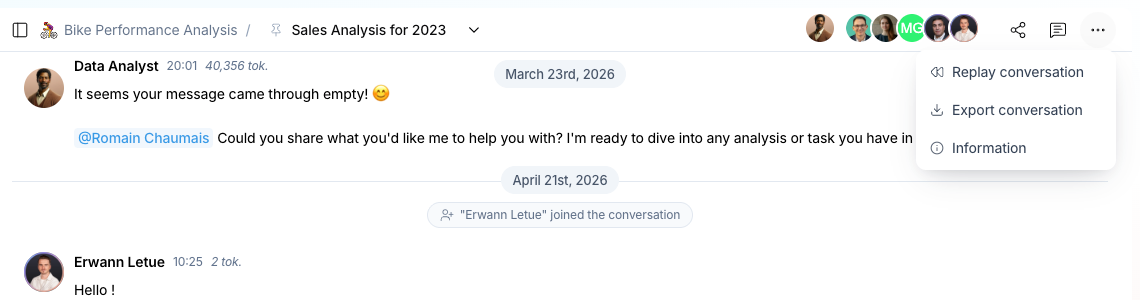
Start a replay
- Open the conversation.
- At the top right of the conversation header, select the replay button (rewind icon, tooltip Replay conversation). On a phone, select the ⋯ button (Actions), then Replay conversation.
- Select a replay mode in the list: Whole conversation, Message by message or Film mode.
The three replay modes
Whole conversation
Whole conversation plays all the messages automatically, from the first to the last. Use it to show how a discussion unfolded.
Message by message
Message by message shows one message, then waits for you. Select the Next button to show the next message. Select Previous to go back one message. Use this mode to explain each step to your audience.
Film mode
Film mode hides the replay controls and the action buttons of the conversation header. Only the messages stay on screen. You control Film mode with the keyboard:
The keyboard shortcuts work only in Film mode. In the two other modes, use the on-screen controls.
What you see during a replay
- Your own messages are typed into the message box, then sent, as in a live chat. In Film mode, press the right arrow to send a typed message.
- A Mate answer starts after a short pause, then its text appears progressively.
- Outside Film mode, a counter (for example "3 / 12") shows the current message and the total number of messages.
Controls in Whole conversation and Message by message
The replay controls show in the message box, at the bottom of the screen:
- Play / Pause: start or stop the automatic playback.
- Previous / Next: go back or forward one message.
- Skip to end: show all the remaining messages at once.
When the replay ends, select Watch again to restart the replay from the first message. On a computer, the app also shows Replay completed.
To leave a replay at any time, select Back to chat in the conversation header. On a phone, this button is an X icon.

Replay on a shared link
When you share a conversation with a public link, people who open the link can also replay the conversation. For the steps, see the article "Sharing a conversation with a public link".
Good to know
- Film mode has no on-screen buttons. Use it on a device with a keyboard.
- A replay does not change the conversation. Nobody else sees your replay.
- Messages that you excluded from context also show in the replay. They stay dimmed, as in the conversation.
- During a replay, you cannot send a new message in the conversation. Leave the replay first.
- Use Message by message to pause and explain each step, for example when you onboard a new team member.
- Use Film mode on a shared screen to keep the focus on the messages.
Related articles
Was this helpful?
Still need help? Ask the team