Managing Your Workspace Conversations
Learn how to organize, pin, archive, move, and contextualize your conversations within a Workspace using the Quick Action menu and the Brief & Details panel.
Last updated 9 days ago
Each Workspace in allmates.ai contains a sidebar listing all your conversations. As projects grow, keeping that list organized becomes essential for both human members and Mates. A set of conversation management tools lets you rename, pin, archive, copy, move, and contextualize any conversation directly from the sidebar.
The Quick Action Menu
To access conversation actions, hover over any conversation in the sidebar and click the three-dot icon (...) that appears. A dropdown menu opens with the following options:
- Rename – Give the conversation a clear, descriptive title so it is easy to identify at a glance.
- Pin – Anchor the conversation to the top of the sidebar list. Pinned conversations always appear first, regardless of recent activity.
- Archive – Remove the conversation from the main view without deleting it. Archived conversations are accessible at the bottom of the Workspace and can be unarchived at any time.
- Copy / Move – Move the conversation to another folder or workspace, or duplicate it. A duplicate can stay in the same workspace.
- Delete – Permanently remove the conversation.
The Information dialog
The Information dialog of a conversation has two tabs, Brief and Details. To open it, open the conversation, then:
- On a computer, click the info icon (i) at the top right of the conversation.
- On a phone, tap ⋯ (Actions) at the top right, then Information.
Brief
A free-text field where you can describe the objective, context, or scope of the conversation. The Brief is read by Mates as additional context, helping them stay aligned with the purpose of the discussion without relying solely on the message history.
Details
Displays metadata about the conversation at a glance:
- Files and attachments used in the conversation
- Total messages and Total tokens spent: how long the conversation is
- Context scope: whether the Mates of this conversation receive the organization context and the workspace context. See Choosing the context a Mate sees.
- Locale: the default language of the conversation. Choose it in the list. Mates will prioritize responses in the selected language.
How to Use These Features
Pin Important Conversations
- Hover over the conversation in the sidebar.
- Click the three-dot icon.
- Select Pin.
The conversation moves to the top of the list. To unpin it, repeat the same steps and select Unpin.
Archive Completed Conversations
- Hover over the conversation in the sidebar.
- Click the three-dot icon.
- Select Archive.
The conversation disappears from the main list and appears in the Archived section at the bottom of the Workspace. To restore it, open the archived section and select Unarchive.
Copy, move or duplicate a conversation
- In the sidebar, hover the conversation and open its menu (three dots). In an open conversation, you can also use the menu next to its name.
- Select Copy / Move.
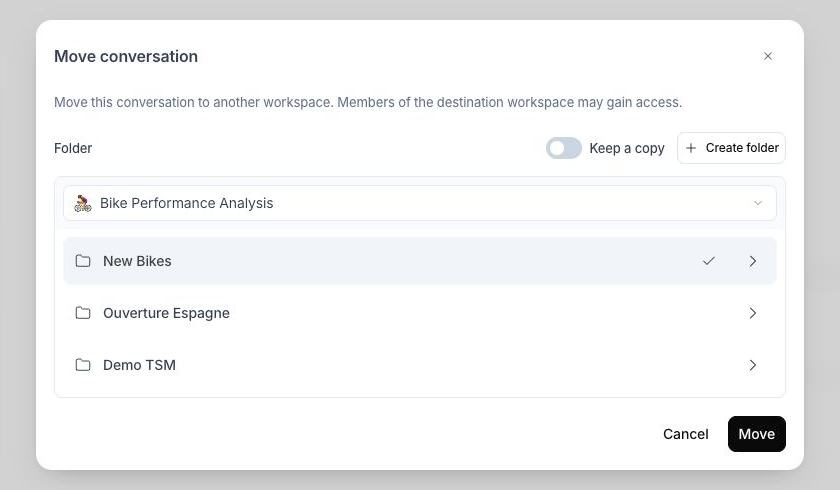
- At the top of the Folder box, choose the destination workspace in the list.
- Click a folder to select it. A check mark shows next to the selected folder. To reach a subfolder, click the arrow at the right of its parent folder. To put the conversation at the top level of the workspace, select no folder; inside a folder, click the home icon above the list to go back to the top level. Workspace admins can also click Create folder.
- Choose what to do:
- To move the conversation, leave Keep a copy off. The window is titled Move conversation and the button reads Move.
- To create a copy and keep the original, turn Keep a copy on. The window is titled Duplicate conversation and the button reads Duplicate.
- Click Move or Duplicate.
After a move to another workspace or a duplicate, the app opens the conversation in its new place. After a move to another folder of the same workspace, the app opens that folder.
Duplicate in the same workspace. You can duplicate a conversation into the workspace where it already is, even into the same folder. Use it to try another direction from the same starting point and keep the original as it is. A move to the place where the conversation already is has no effect: the window says "This conversation is already in that destination."
Move a private chat into a workspace. A private chat can move or be duplicated into a shared workspace, so your team can continue it. Private chats are not a possible destination: you cannot move a workspace conversation into your private chats.
What comes along. The messages, the attachments, the files that tools produced and the details of each tool call move or are copied with the conversation. The conversation keeps its name.
Good to know:
- Members of the destination workspace can see the conversation after the move or the duplicate. Check who is in that workspace first.
- A move to another workspace gives the conversation a new address. The old link to the conversation no longer works. Share the new link.
- A duplicate is independent from the original. New messages in one do not appear in the other.
Write a Brief for a Conversation
- Open the conversation.
- Click the info icon (i) at the top right. On a phone, tap ⋯, then Information.
- Select the Brief tab.
- Type the context, objective, or any relevant instructions for Mates.
The Brief is automatically available to Mates participating in the conversation. It does not appear as a message in the chat history.
Best Practices
- Rename conversations early. A clear title makes it easier to find the right conversation later, especially in busy Workspaces.
- Use pins sparingly. Pin only the conversations that require immediate, ongoing attention. Too many pinned items reduce the benefit of the feature.
- Archive instead of delete. Archiving preserves the conversation history for future reference while keeping the sidebar clean.
- Write a Brief for complex conversations. When a conversation involves multiple steps or requires Mates to maintain a specific focus, a Brief ensures consistency across all interactions.
- Check the Details tab of long conversations. It shows the files and the length of the conversation. When a long conversation drifts, hide the messages the Mates no longer need. See "Mastering Hidden Messages: Optimize Context".
Related articles
Was this helpful?
Still need help? Ask the team