Changing the interface language and theme
Choose one of the 8 interface languages and a light, dark or system theme in your preferences.
Last updated About 13 hours ago
You can use allmates.ai in 8 languages, in a light or a dark theme. Both settings are in the Preferences section of your Account page. This article shows how to change them and what each setting changes. It is for every member.
Open your preferences
- At the bottom of the left rail, click your avatar. Your Account page opens.
- In the Account sidebar, under Personal, click Preferences.
The Preferences page shows the Language card, the Theme card and the Message submit shortcut card.
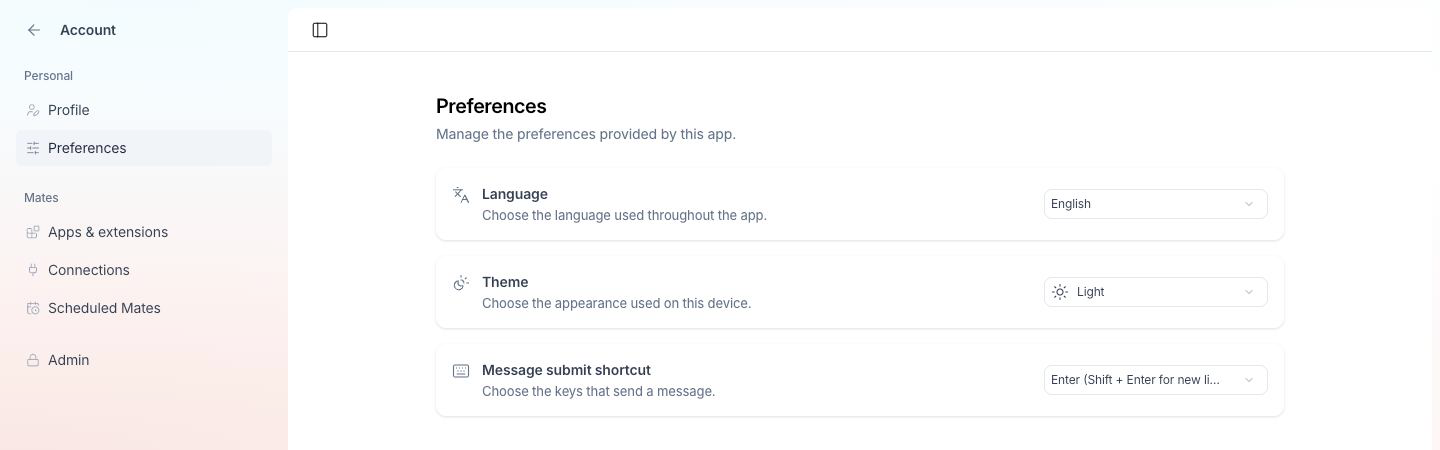
Change the interface language
- In the Language card, open the list.
- Choose a language.
The interface changes at once. You do not need to reload the page. Dates also follow the new language.
The interface is available in these 8 languages:
- English
- Español (Spanish)
- Français (French)
- Italiano (Italian)
- 日本語 (Japanese)
- Polski (Polish)
- Português (Brasil) (Brazilian Portuguese)
- Svenska (Swedish)
Where the language setting applies
- The language follows you on every device and browser where you sign in to this organization.
- If you belong to several organizations, each organization keeps its own language setting. When you switch organization, the interface can change language.
- Until you choose a language, the app starts in your browser's language when it is one of the 8 languages, else in English.
Change the theme
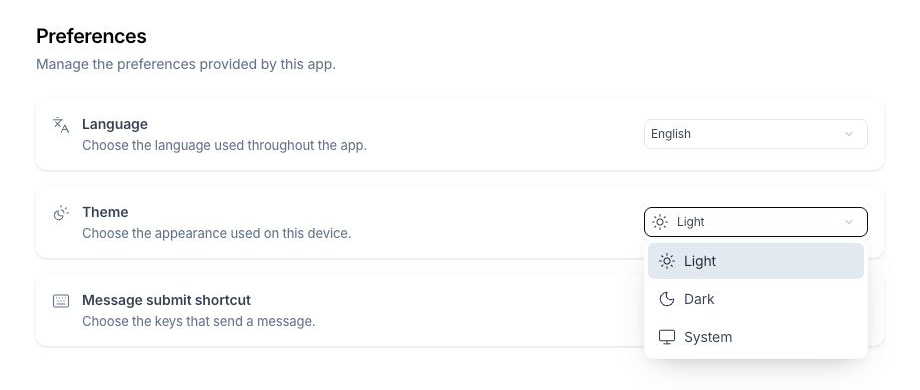
- In the Theme card, open the list.
- Choose one option:
- Light: a light background.
- Dark: a dark background.
- System: the app follows the light or dark setting of your computer or phone.
The theme changes at once.
The theme applies to this device and this browser only. On another computer or another browser, choose the theme again.
The language of your Mates
The interface language does not set the language of the Mates' answers. A Mate usually answers in the language you write in. To get answers in another language, write in that language or ask the Mate for it, for example "Answer in Spanish".
A Mate whose instructions set a language answers in that language. Ask the Mate's admin if a Mate does not answer in your language.
The interface language also does not translate your content: conversation names, workspace names, Mate names and descriptions stay as their authors wrote them.
Good to know
- The Preferences page also holds the Message submit shortcut card. See "Customizing Your Message Send Shortcut".
- The interface language is personal. It does not change the language of other members.