Buying credits and managing your subscription
Buy credit packs, change your subscription and download your invoices from the Plans & billing tab.
Last updated About 12 hours ago
Organization Owners and Admins buy credits, change the subscription and download invoices from the Plans & billing tab of the organization settings. This article shows each part of that tab. For what credits pay for and how the balance works, see "Understanding credits".
Open the Plans & billing tab
- At the top of the sidebar, click your organization's name.
- Click Settings. Only Owners and Admins see this button.
- Open the Plans & billing tab.
You can also click Manage or Top up on the Credits card of the organization switcher, or Top up credits on a low-credit callout. Each one opens the same tab.
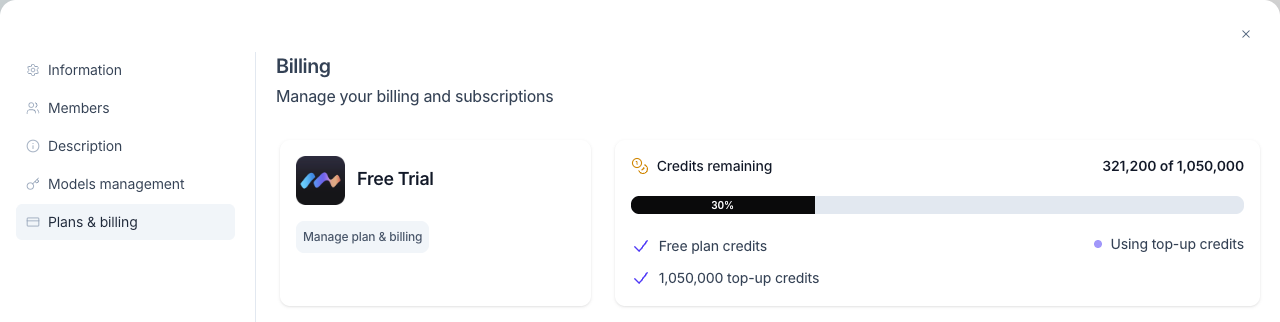
The tab has two rows:
- At the top, your current plan and your credits.
- Below, the purchase cards: Buy credits, Change subscription and Contact us.
Your current plan
The left card shows the name of your current plan. For a paid subscription, it also shows the renewal date ("Renews" followed by the date).
Click Manage plan & billing to open the billing portal in a new browser tab. In the portal, you can:
- see and download your invoices,
- update your payment method.
Your credits
The right card shows Credits remaining with the credits left and the credits received. It lists where your credits come from: subscription credits with their renewal date, Free plan credits, or top-up credits.
Some organizations see Credits used instead of Credits remaining.
Buy credits (one-time packs)
A pack adds credits to your balance once. Use it to top up between renewals or when the balance is low.
- On the Credits (top-ups) card, open the list and choose a pack: 100k credits, 500k credits, 1M credits or 2M credits.
- Check the price shown on the card.
- Click Buy credits.
- Complete the payment in the checkout window.
The credits are added to your balance after payment. If your Mates were paused at zero, they reply again.
Change subscription (monthly credits)
A subscription gives your organization a set amount of credits every month.
- On the Subscription card, open the list and choose a tier: 100k credits, 500k credits, 1M credits or 2M credits. The list preselects your current tier.
- Check the monthly price shown on the card.
- Click Change subscription.
- If a checkout window opens, complete it.
The new tier applies to your subscription. The Plans & billing tab then shows the new subscription credits and their renewal date.
Contact us (custom offers)
The Contact us card is for a custom offer. Choose Business or Enterprise in the list, then click Contact us. A contact page of allmates.ai opens in a new browser tab.
With a custom offer
Some organizations have a custom offer. For most of them:
- the Plans & billing tab shows only the Buy credits card,
- there is no Change subscription card and no Contact us card.
You buy credits with the same steps as above. The card shows the prices of your offer.
Good to know
- Members with the User role do not see Settings, the Plans & billing tab or the credit balance.
- The prices always show in the app, on the purchase cards and in the checkout window.
- If the tab shows "Unable to load billing information. Please try again later.", reload the page. If the message stays, contact support.
- Your plan in billing is different from a member's plan. A member's plan sets which features that member can use. See "Managing Roles, Plans, and Permissions".