Connecting Microsoft Azure models
Connect your Azure OpenAI or Azure AI deployments and add their models to your organization.
Last updated About 13 hours ago
If your company runs its models on Microsoft Azure, you can connect them to allmates.ai. Two providers are available: Azure OpenAI, for the Azure OpenAI Service, and Azure AI, for the other model deployments on Azure. This article shows the Azure fields of a connection and of a model. It is for organization Owners and Admins. This feature is part of the Enterprise offer.
Ask your Azure administrator for the values below.
Create an Azure OpenAI connection
- Click your organization's name at the top of the sidebar, then Settings.
- Open Models management, then the Connections tab.
- Click Create connection.
- Fill in Name and, if you want, Description.
- In Provider, choose Azure OpenAI.
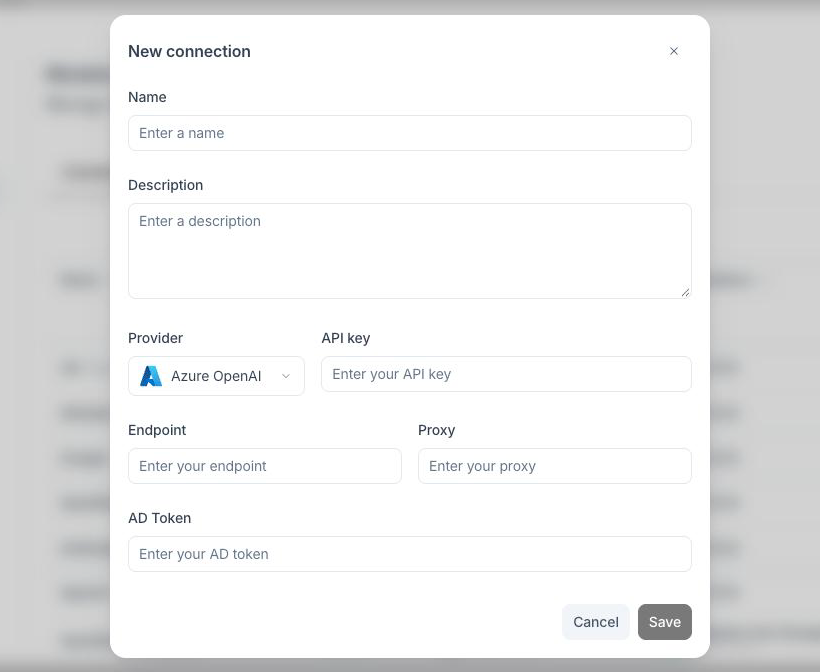
- Fill in the Azure fields:
- Endpoint (required): the address of your Azure OpenAI resource.
- API key (optional): the key of the resource.
- AD Token (optional): a Microsoft Entra ID (formerly Azure AD) token, if your resource uses it instead of an API key.
- Proxy (optional): the address of a proxy, if your company routes the calls through one.
- Click Save.
Create an Azure AI connection
- Follow steps 1 to 4 above.
- In Provider, choose Azure AI.
- Fill in API key and Base URL. Both are required. The base URL is the endpoint of your Azure AI deployment.
- Click Save.
Add a model on an Azure connection
An Azure connection gives access to your deployments. For each deployment, create a model:
- Open the Models tab and click Create model.
- Fill in Name. Members see this name in the model lists.
- In Connection, choose your Azure connection.
- In Physical model, choose the model that your deployment runs.
- Fill in the Azure fields:
- For Azure OpenAI: Version API, the API version of your deployment (for example
2024-10-21), and Deployment, the deployment name. - For Azure AI: Deployment, the deployment name.
- For Azure OpenAI: Version API, the API version of your deployment (for example
- Click Save.
The model is now available to the Mates of your organization, like any other model.
Good to know
- The deployment name is the name you gave the deployment in Azure. It is often different from the model name.
- When you edit an Azure OpenAI connection, the API key and AD Token fields stay hidden. Click the pen button next to a field to replace its value.
- You cannot change the provider of an existing connection. Create a new connection instead.