Adding a Mate from the Mates Store
Add a ready-made Mate from the Mates Store to your organization in one click, then adjust it like any other Mate.
Last updated About 6 hours ago
The Mates Store is the catalog of ready-made Mates published by allmates.ai. You add a Store Mate to your organization in one click, then adjust it like any other Mate. This article is for members who manage the organization's Mates.
Adding a Mate from the Store needs the Mate management permission. In the default plan catalog, this permission comes with the Expert plan. Your organization's plans may differ. Members without it can browse the Store but see no button on the cards.
Open the Mates Store
- In the sidebar, click Mates & tools.
- Click Mates Store.
You can also open the list of your organization's Mates (Mates & tools > Organization's Mates) and click Mates Store above the list.
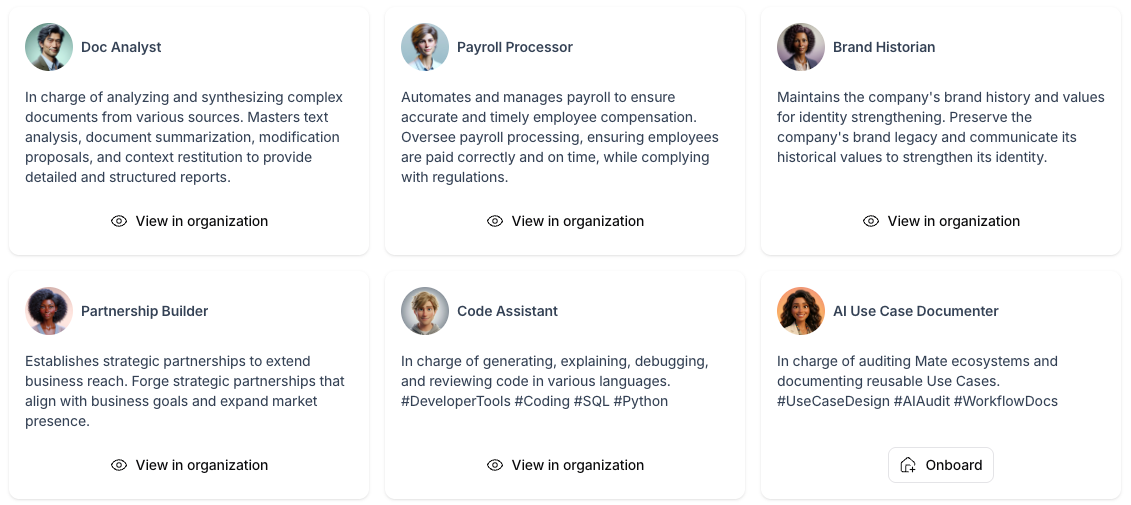
The Store page shows one card per Mate, with its name, avatar and description.
Add a Mate to your organization
- Find the Mate you want.
- Click Onboard on its card.
The platform creates the Mate in your organization and opens its page. The new Mate:
- has the Store Mate's name, description, category, avatar and instructions,
- uses your organization's default model and the default temperature,
- has every capability turned on (you can change them on the Parameters tab).
You become the Mate's Owner. Other members do not see it until you give them access on the Mate's Authorizations tab.
Find a Mate you already added
When your organization already has a Store Mate, its card shows View in organization instead of Onboard. Click it to open the Mate's page.
Add a Store Mate again
After you delete a Mate that came from the Store, its card shows Onboard again. When you click it, the platform restores that Mate with the Store's current name, description, avatar and instructions. The restored Mate uses your organization's default model again.
Good to know
- Some Store Mates have read-only instructions. Their Instructions tab shows the text without an editor. You can still change the model, the capabilities, the knowledge and the tools.
- If onboarding fails, an error message shows on the page and no Mate is added.