Introduction to Tools
What a tool is, the kinds of tools a Mate can use, and where you find and manage them.
Last updated 15 days ago
Tools let your Mates act beyond conversation: search the web, query your CRM, run Python code, create images, or call any API your organization uses. This article explains what a tool is, the kinds of tools available, and where you find and manage them. It is for everyone who works with Mates, and for the people who set up tools.
What is a tool?
A tool is a connection that a Mate can call while it answers. The Mate decides when a request needs the tool, sends it the right inputs, reads the result, and writes its answer. You see which tools a reply used with the Tools called button under the message.
A Mate can only use the tools attached to it. Attach to each Mate the tools that match its job: a research Mate needs web search, a sales Mate needs the CRM.
Typical uses:
- Real-time information: web search, news, prices, current data from your business apps.
- Business apps: read and update records in a CRM, a ticketing system, a database or a file store.
- Analysis: run Python code on a spreadsheet, compute statistics, draw a chart.
- Content: create or edit images from a description.
- Custom integrations: call any REST API or MCP server of your organization.
Kinds of tools
- MCP connections. Most tools of the Tool Store connect to the MCP (Model Context Protocol) server of an app. Many sign in with OAuth: each member connects their own account, or a tool manager connects one shared account.
- Web API tools. Store tools that call a web service for you, such as web search or image generation, and custom REST API tools that you describe with an OpenAPI schema.
- Built-in tools. Tools that allmates.ai provides, such as the Python code interpreter.
Tool Store and Toolbox
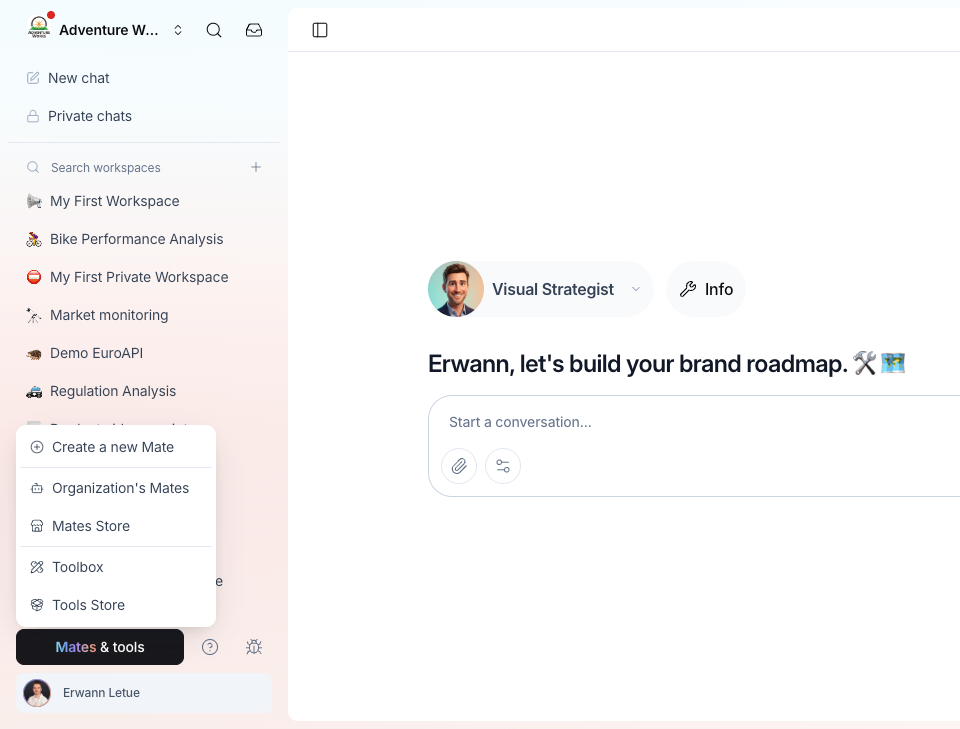
Both live under Mates & tools in the sidebar.
Tools Store is the catalog. You browse tools by category, read what each one does, and install it in one click. After the install, the app offers to attach the new tool to your Mates. The list of tools depends on your organization. See "Discovering the Tool Store".
Toolbox lists the tools installed in your organization, called tool instances. From there you:
- connect a new tool (Connect tool): from the store, or a custom MCP server or REST API,
- edit a tool's settings and credentials,
- see and change which Mates use it (Mates tab),
- set who can manage, attach or only see it (Authorizations tab),
- delete it.
See "Creating and Managing Tool Instances".
Tool usage (calls, success rate, cost) is on the Tools page of Analytics, when your organization has Analytics.
Who can do what
- Installing and managing tools needs tool-management rights: the Expert plan by default; your organization's plans may differ.
- Tool authorizations (Owner, Admin, User, List) decide who can manage a tool or attach it to a Mate. See "Mastering Tool Authorizations".
- Using a tool only needs access to a Mate that has it: anyone who can talk to the Mate can use its tools.
Next steps
- Browse the Tools Store and note the tools that match your team's tasks.
- Install one and attach it to a test Mate.
- Ask the Mate a question that needs the tool, then open Tools called to see what it did.
Related articles
Was this helpful?
Still need help? Ask the team