What a tool call looks like in a conversation
Open the trace of a Mate's tool calls to see what it asked, what the tool returned and why a call failed.
Last updated About 16 hours ago
When a Mate uses a tool to answer, for example a web search, a CRM lookup or a Python run, the conversation keeps a trace of each call. You can open it to see what the Mate asked the tool, what the tool returned, and why a call failed. This article is for everyone who talks with Mates.
The Tools called button
A reply that used tools shows a Tool called button (one call) or Tools called button (several calls) under the message, with the number of calls in a badge.
The Mate decides alone when a request needs a tool. You do not have to name the tool, but you can: "Use the CRM tool to find the account of Acme."

Open the details
Click Tools called. A panel opens on the right side:
- At the top: the Mate's name and {tool} tool call details, or Tool calls details (n) for several calls.
- One section per call, with the name of the action called and its status:
- a green check: the call succeeded,
- a red warning sign: the call failed.
Click a call to expand it. You see:
- a short summary of the tool,
- Arguments: what the Mate sent to the tool, for example the search query or the record ID. This part is folded for a successful call; click it to unfold.
- Response: what the tool returned to the Mate, as raw data.
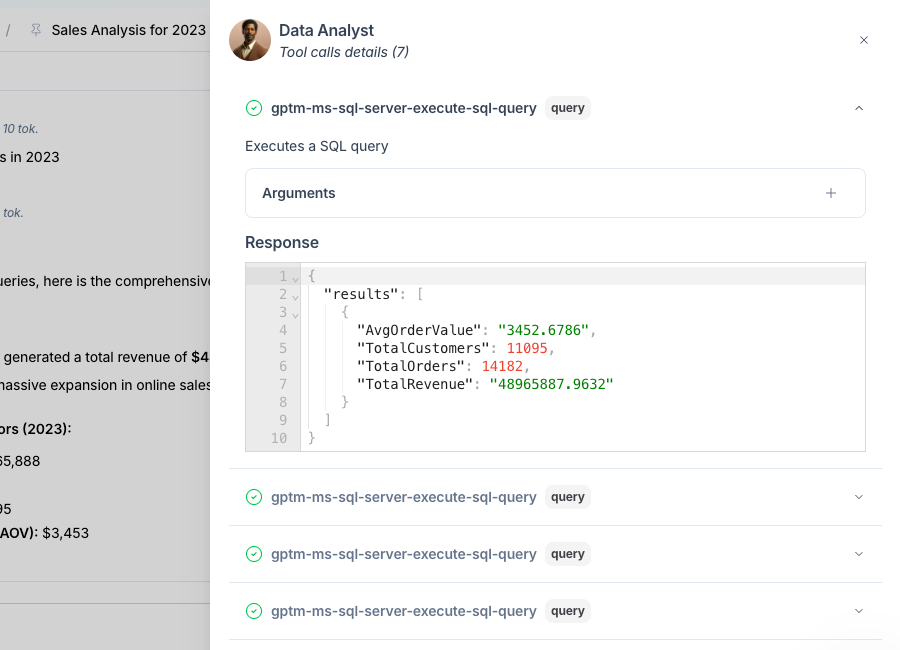
Use it to check where a figure comes from, to understand an unexpected answer, or to copy the exact data that the tool returned.
When a tool call fails
A failed call shows its error message in red, with its Arguments unfolded so you can see what was sent. A Report button can appear next to the error: click it to send the problem to the allmates.ai team, with the reference of the message.
Frequent causes:
- Wrong input: the Mate sent a value the tool does not accept. Rephrase your request with more precise details.
- Missing access: the account behind the tool cannot see the data.
- Tool unavailable: the external service did not answer. Try again later.
The Mate usually reads the error and tries again or explains the problem in its reply.
When a tool needs your account
Some tools act with each member's own account. The first time a Mate needs such a tool for you, the reply asks you to connect instead of answering:
- Connect my account opens the service's sign-in. After you sign in, the Mate continues.
- Continue without tool lets the Mate answer without the tool.
Other tools ask you to fill in a credential, such as your own API key, then click Save credentials and Retry request. See "Personal and shared tool authentication" for all the messages.
Good to know
- Everyone who can see the conversation can open the tool call details of its messages, arguments and responses included.
- Files that a tool creates, such as a chart from the code interpreter or a generated image, appear as attachments of the Mate's reply, not only in the details panel.
- Tools come from the Mate. A Mate can only call the tools attached to it. Hover over its avatar to see them.