Customizing Your Message Send Shortcut
Choose whether Enter or Cmd/Ctrl + Enter sends your messages, and see when sending is blocked.
Last updated 9 days ago
allmates.ai lets you choose the keys that send a message. You can send with Cmd/Ctrl + Enter and keep Enter for new lines, or send with Enter, as in most chat apps. Your choice is saved to your account and applies to every message box of the app.
Change the shortcut
- Select your avatar and name at the bottom of the left sidebar. The Account page opens. On a phone, open the sidebar first.
- In the account navigation, select Preferences.
- Find the Message submit shortcut card, below the Theme card.
- Open the list and select an option.
The new shortcut applies at once. You do not need to reload the page.
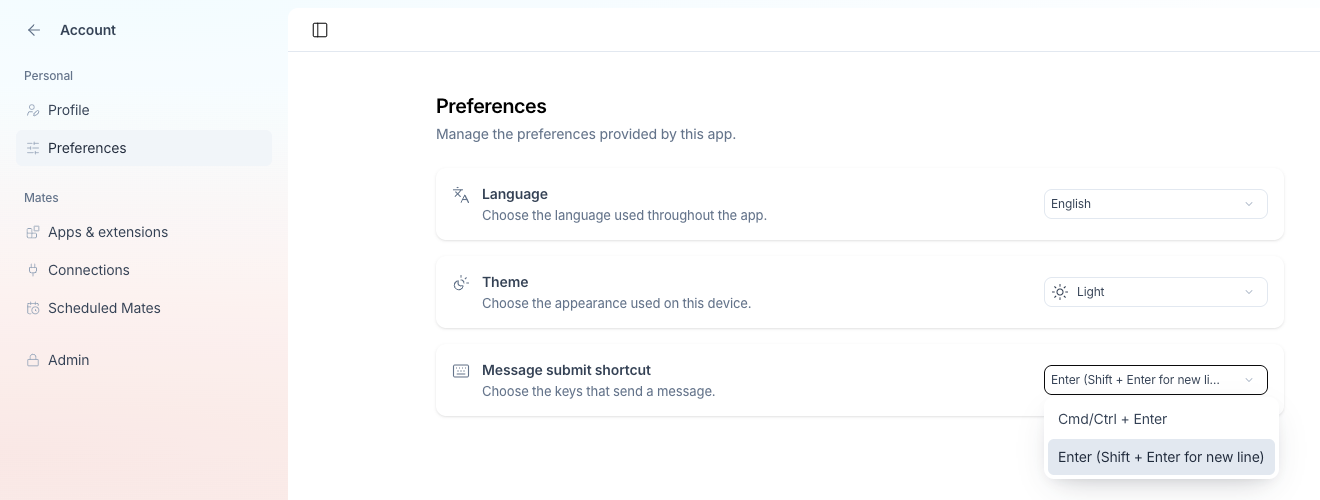
The two options
Cmd/Ctrl + Enter
Enter adds a new line. Cmd + Enter (Mac) or Ctrl + Enter (Windows) sends the message. Use this option if you often write long, multi-line prompts and want to avoid sending them by accident.
Enter (Shift + Enter for new line)
Enter sends the message at once. Shift + Enter adds a new line. Use this option for fast back-and-forth exchanges.
The default option
The default option can differ between organizations. It is usually Cmd/Ctrl + Enter. The Message submit shortcut card always shows the option that applies to you.
Cmd/Ctrl + Enter always sends
Whatever option you choose, Cmd + Enter (Mac) and Ctrl + Enter (Windows) always send your message. Use this shortcut as a safety net when you switch between the two options.
Where the shortcut applies
The shortcut applies to every message box of allmates.ai:
- the message box of the home page,
- the message box of a workspace,
- the message box of each conversation,
- the box that opens when you edit one of your messages.
When sending is blocked
The shortcut does not send your message in these cases:
- The message box is empty.
- A mention suggestion (for example
@Mate) is open. - An emoji suggestion is open.
- A voice recording or its transcription is in progress.
- One or more files are still uploading.
Wait for the action to finish, then send your message.
Other keyboard shortcuts
Good to know
- Your choice is saved to your user account. It follows you on every device and browser where you sign in with the same account.
- Each person chooses their own shortcut. Your choice does not change the shortcut of your teammates.
- If a message does not send, check that no file is still uploading and that no suggestion list is open.
Related articles
Was this helpful?
Still need help? Ask the team