Finding the files of a conversation
List every file of a conversation, open or download it, and choose how each file reaches the Mates.
Last updated About 15 hours ago
A long conversation can hold many attachments, spread over days of messages. The conversation Information dialog lists all of them in one place. From this list, you can open a file, download it, download all files at once, and choose how each file is sent to the Mates.
Open the list of files
- Open the conversation.
- At the top right, click the ⋯ menu (Actions), then Information. A dialog opens.
- Open the Details tab.
- Scroll down to All files from this chat.
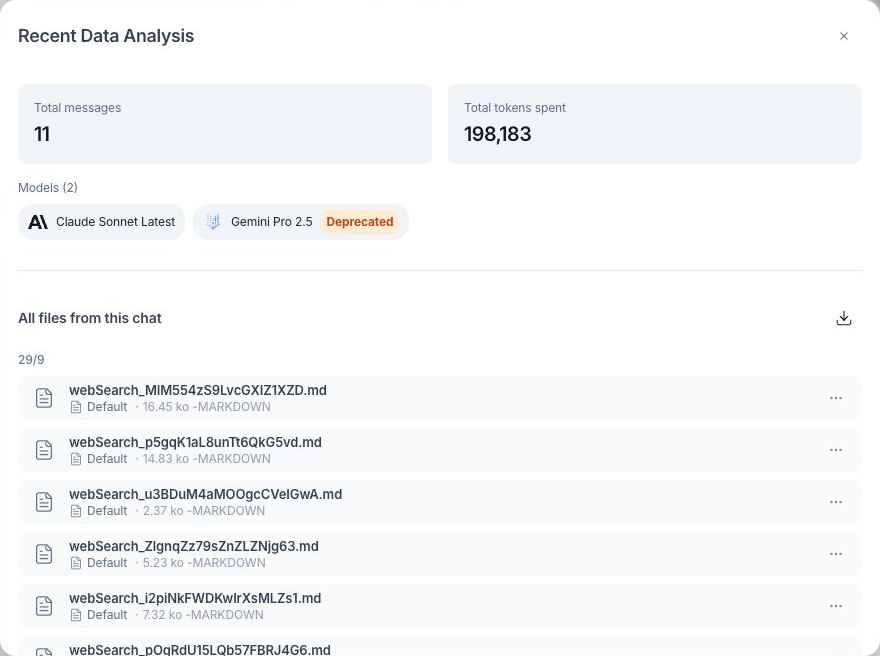
The list shows every file attached to a message of the conversation. Files are grouped by day (Today, Yesterday, then the date), with the newest first. When the conversation has no attachment, the section shows "No files in this conversation".
Open or download one file
- Click the ⋯ button on the file row. You can also right-click the row.
- Choose an action:
- Preview: opens the file in a new browser tab.
- Download: saves the file to your computer.
Download all files at once
Click the download icon (Batch download) next to the All files from this chat title. Your browser downloads a ZIP archive named attachments_ followed by the date of the day. The archive holds every file of the list. When two files have the same name, the second one gets a number, for example report_2.pdf.
Choose how a file is sent to the Mates
Each file row shows its integration mode, for example Default. The integration mode sets what the Mates receive from the file in the next messages.
- Click the integration mode on the file row.
- Choose a mode:
- Default: "The file is sent as-is to the Mate".
- Text (markdown): "The file is converted to Markdown before sending".
- Summary: "A summary of the file is generated then sent".
- Reference: "Only the file name is sent, content remains available on request".
- Hidden: "The file is excluded from the prompt — it remains stored but inactive".
The change is saved at once. A file in Hidden mode appears faded in the list.
Use Reference or Hidden for a large file that the Mates no longer need in every answer. It keeps the conversation lighter without deleting the file.
Good to know
- The list shows the files attached to messages. Knowledge files of a Mate or a workspace are not in this list.
- Deleting a file from this list is not possible. The file stays attached to its message.
- On a public shared page, visitors can open the files of the shared messages, but they cannot change the integration mode. See "Sharing a conversation with a public link".
- An exported conversation (Docx, PDF, Markdown) does not include the attachments. Use Batch download to keep them next to the export.