Choosing the context a Mate sees
Turn the organization and workspace context on or off for a workspace, a conversation or a Mate.
Last updated About 15 hours ago
Before it answers, a Mate receives background information about where the conversation takes place: the name and description of your organization, and the name and description of the workspace. This is the context scope. You can turn each part on or off for a whole workspace, for one conversation, or for one Mate. Use it when a conversation must stay neutral, for example a test with an external audience, or when the organization description does not fit a topic.
The two parts of the context
- Organization context: the organization's name and description, as set in the organization settings.
- Workspace context: the workspace's name and description.
Both are on by default.
Set the default for a workspace
Each workspace has a default for the organization context. Every conversation of the workspace uses it, unless the conversation changes it.
- In the sidebar, next to the workspace name, click the settings icon (Project settings & members...).
- On the Details page, turn Include organization context on or off.
You can also set it when you create a workspace. The toggle is next to the Locale field. Only Workspace Admins and Owners can change it. In a public workspace, organization Admins can too.
Change the context of one conversation
From the message composer.
- In the composer toolbar, next to the paperclip, click the settings icon (Chat options).
- Open Context.
- Click Organization context or Workspace context to turn it off or on.
- Send your message.
A chip next to the button shows each change, for example "No org. context" or "No workspace context". Click the chip to cancel the change before you send. The change is saved on the conversation when you send the message. It then applies to this message and to all the next ones.
From the conversation details.
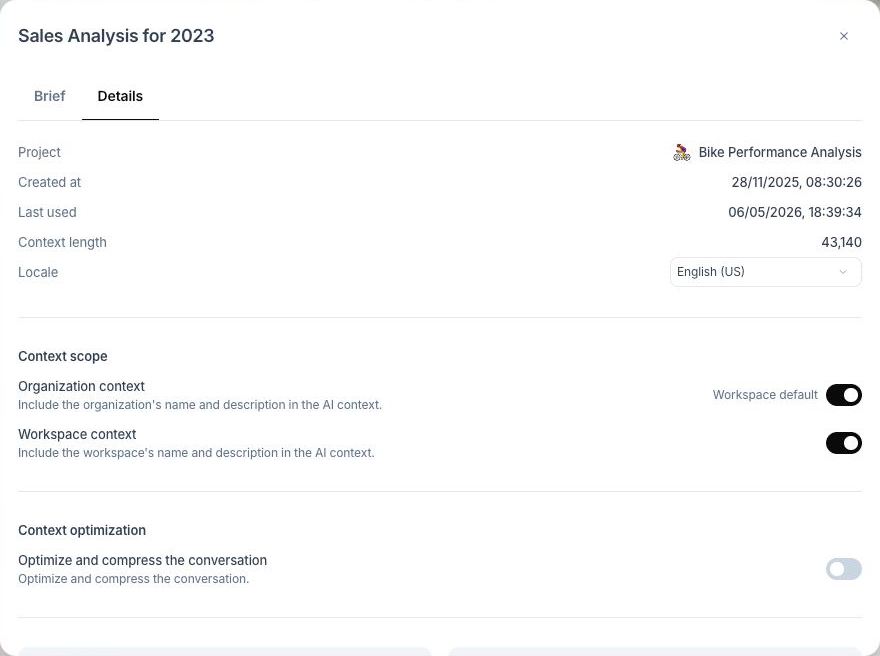
- At the top right of the conversation, click the ⋯ menu (Actions), then Information. In the dialog, open the Details tab.
- In Context scope, turn Organization context or Workspace context on or off.
- If the conversation already has messages, a message says "This change will only affect future messages. Previous messages already used the prior context configuration." Click Confirm.
Next to Organization context, "Workspace default" means the conversation follows the workspace setting. After you change it, click Reset to workspace default to follow the workspace again.
Change the context for one Mate
A Mate can also refuse a part of the context in all its conversations.
- Open Mates & tools, then open the Mate.
- Open the Parameters tab.
- Open Advanced settings, then the Context section.
- Turn off the parts this Mate must not use, for example Organization context or Workspace context.
The change saves on its own. The same section has Project context, Chat members and Mention rules. Only people who can configure the Mate change these settings.
Which setting wins
For each message, allmates.ai checks the settings in this order:
- The Mate. If the Mate's Context section turns a part off, the Mate never receives it. No other setting turns it back on.
- The conversation. A choice made in the composer or in the Details tab applies to this conversation only.
- The workspace. For the organization context, a conversation without its own choice follows Include organization context. The workspace context has no workspace-level switch: it is on unless the conversation turns it off.
Example: the workspace includes the organization context, but you turn Organization context off in one conversation. The Mates of that conversation no longer receive the organization's name and description. The other conversations of the workspace still do.
Good to know
- A change applies to the next messages only. The answers already written do not change.
- In a private chat, only Organization context is available. A private chat has no workspace context.
- The context scope controls the organization and workspace names and descriptions. It does not change the Mate's own instructions, its knowledge, or the files attached to the conversation.
- The conversation Brief is separate. Edit it in the Brief tab of the conversation information.