Connecting Microsoft Azure models
Connect your Azure OpenAI or Azure AI deployments and add their models to your organization.
Last updated About 2 months ago
If your company runs its models on Microsoft Azure, you can connect them to allmates.ai. Two providers are available: Azure OpenAI, for the Azure OpenAI Service, and Azure AI, for the other model deployments on Azure. This article shows the Azure fields of a connection and of a model. It is for organization Owners and Admins. This feature is part of the Enterprise offer.
Ask your Azure administrator for the values below.
Create an Azure OpenAI connection
- Click your organization's name at the top of the sidebar, then Settings.
- Open Models management, then the Connections tab.
- Click Create connection.
- Fill in Name and, if you want, Description.
- In Provider, choose Azure OpenAI.
- Fill in the Azure fields:
- Endpoint (required): the address of your Azure OpenAI resource.
- API key (optional): the key of the resource.
- AD Token (optional): a Microsoft Entra ID (formerly Azure AD) token, if your resource uses it instead of an API key.
- Proxy (optional): the address of a proxy, if your company routes the calls through one.
- Click Save.
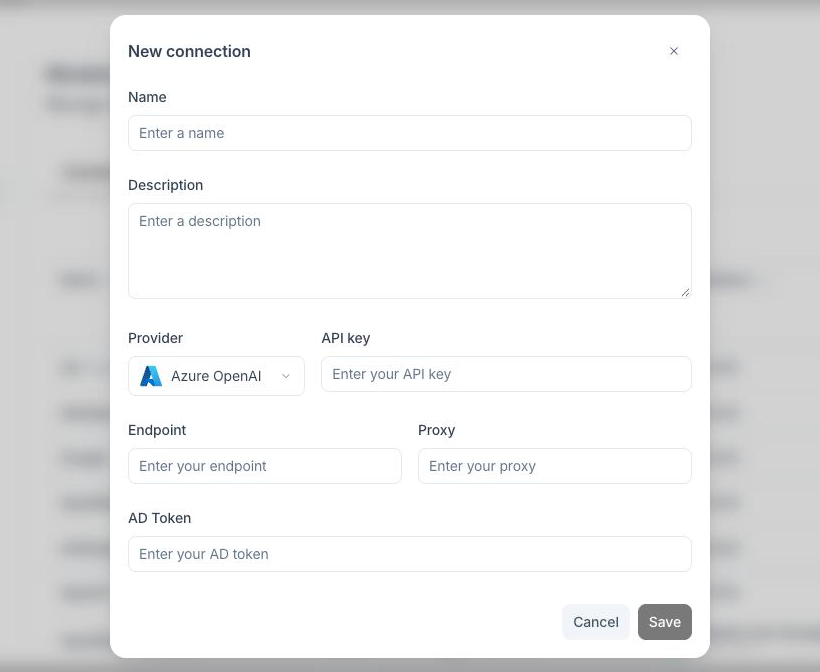
Create an Azure AI connection
- Follow steps 1 to 4 above.
- In Provider, choose Azure AI.
- Fill in API key and Base URL. Both are required. The base URL is the endpoint of your Azure AI deployment.
- Click Save.
Add a model on an Azure connection
An Azure connection gives access to your deployments. For each deployment, create a model:
- Open the Models tab and click Create model.
- Fill in Name. Members see this name in the model lists.
- In Connection, choose your Azure connection.
- In Physical model, choose the model that your deployment runs.
- Fill in the Azure fields:
- For Azure OpenAI: Version API, the API version of your deployment (for example
2024-10-21), and Deployment, the deployment name. - For Azure AI: Deployment, the deployment name.
- For Azure OpenAI: Version API, the API version of your deployment (for example
- Click Save.
The model is now available to the Mates of your organization, like any other model.
Good to know
- The deployment name is the name you gave the deployment in Azure. It is often different from the model name.
- When you edit an Azure OpenAI connection, the API key and AD Token fields stay hidden. Click the pen button next to a field to replace its value.
- You cannot change the provider of an existing connection. Create a new connection instead.
Related articles
Was this helpful?
Still need help? Ask the team