Organize workspace conversations with folders
Learn how to create, nest, and manage folders in allmates.ai to organize your workspace conversations and customize your sidebar layout.
Last updated 9 days ago
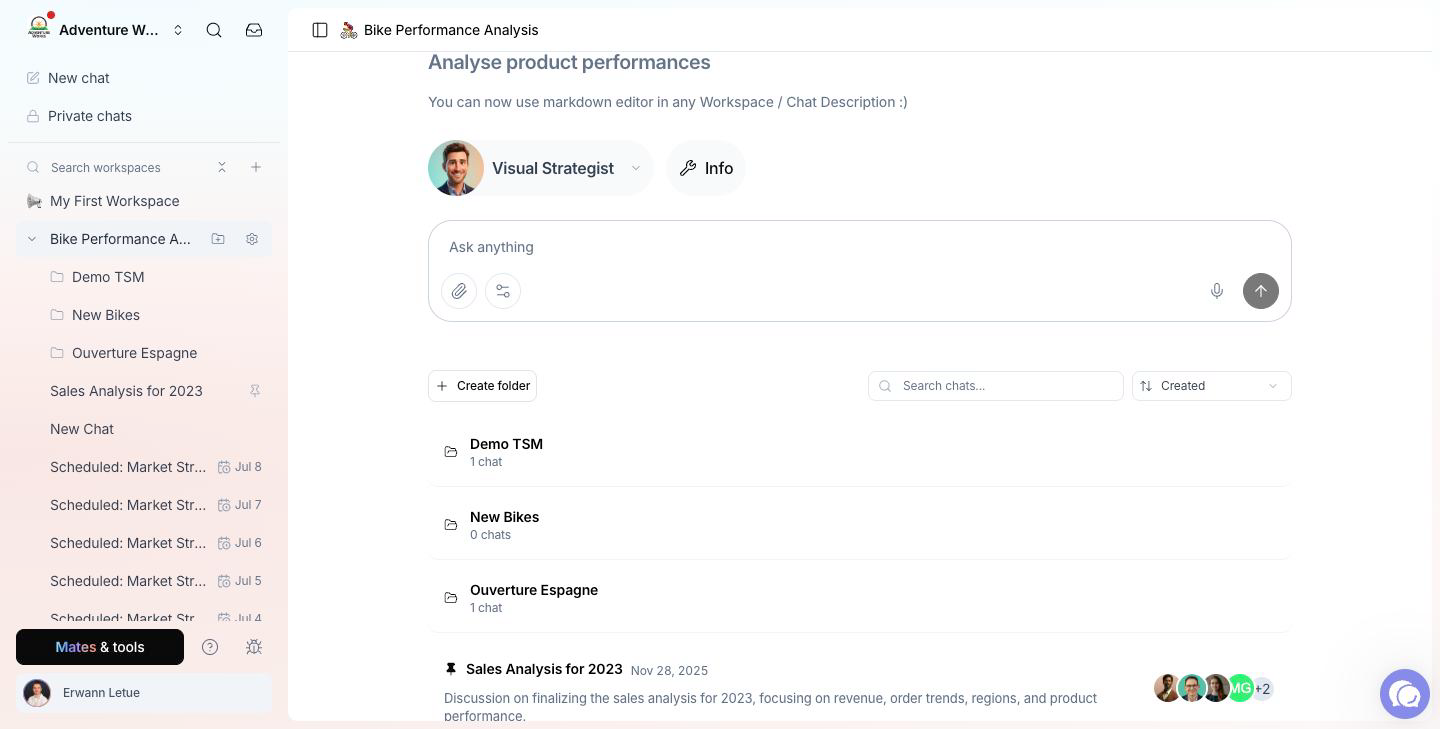
A busy workspace quickly holds dozens of conversations. Folders group them by topic, client or project, so everyone finds the right discussion fast. Folders can hold conversations and other folders. They show in the sidebar under the workspace, and each folder has its own page.
Who can do what
When you cannot manage folders, the folder buttons are disabled and show "Workspace admins only".
Create a folder
- Open the workspace page: click the workspace name in the sidebar.
- Click Create folder.
- In Folder name, type a name.
- Click Create.
To create a folder inside another folder, open the parent folder first, then click Create folder. You can also use the sidebar: next to the workspace name, click the folder icon (Create folder). To create a subfolder, open the menu of a folder in the sidebar and choose Create folder.
Rename or delete a folder
- Open the folder menu (Folder actions). It is on the folder row of the workspace page, on the folder in the sidebar, and at the top of the folder page.
- Choose Rename or Delete.
- For Rename, type the new name and click Save. For Delete, confirm with Delete.
Deleting a folder does not delete its content. The conversations and subfolders of the deleted folder move up one level, into the parent folder. When the deleted folder was at the top level, they move to the workspace root.
Move conversations and folders
Drag and drop. On the workspace page or on a folder page, drag a conversation onto a folder to move it there. Drop it on an empty part of the list to move it to the level you are viewing. Folder managers can drag a folder into another folder the same way.
From the conversation menu. Copy / Move in the menu of a conversation moves it to a folder or to another workspace, or duplicates it. See "Managing Your Workspace Conversations" for the steps and what a move changes.
Sort folders and conversations
Use the sort selector on the workspace page or on a folder page:
- Created: by creation date.
- A-Z and Z-A: by name.
- Manual: in the order you set by drag and drop.
When you drop an item while another sort mode is on, allmates.ai asks "Switch to manual order?". Click Switch to manual order to keep the current order as the starting point and apply your drop.
The sort mode and the manual order are personal. They are saved in your browser, for each workspace and each folder level. Your teammates keep their own order. On another browser or another computer, you start again from the default order (Created). The sidebar follows the order you chose.
Good to know
- The number of conversations shows on each folder, with a badge for unread conversations.
- Archived conversations stay in their folder, grouped under Archived at the bottom of the list.
- A link to a deleted folder, or to a folder you cannot access, shows "Folder not found".
- Private chats have no folders. Folders exist in workspaces only.
Related articles
Was this helpful?
Still need help? Ask the team