Browsing your Mates: filters and badges
Search and filter the Mates list, act from a Mate card and understand the Verified, Beta and Deprecated badges.
Last updated About 14 hours ago
When your organization has many Mates, the Mates list helps you find the right one fast. You can search, combine filters and act on a Mate from its card. Badges tell you which Mates your organization endorses, which ones are still in test and which ones are being replaced. This article is for every member. The last section is for the Mate admins who set the badges.
Open the Mates list
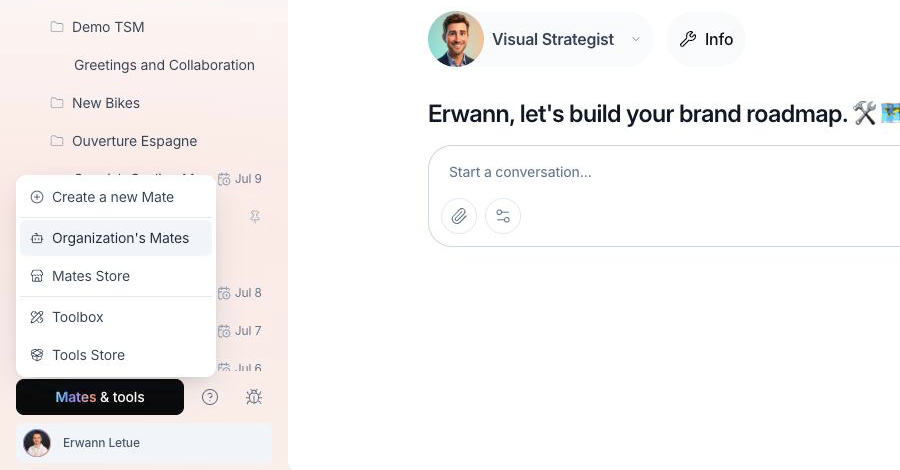
- In the left sidebar, click Mates & tools.
- Click Organization's Mates.
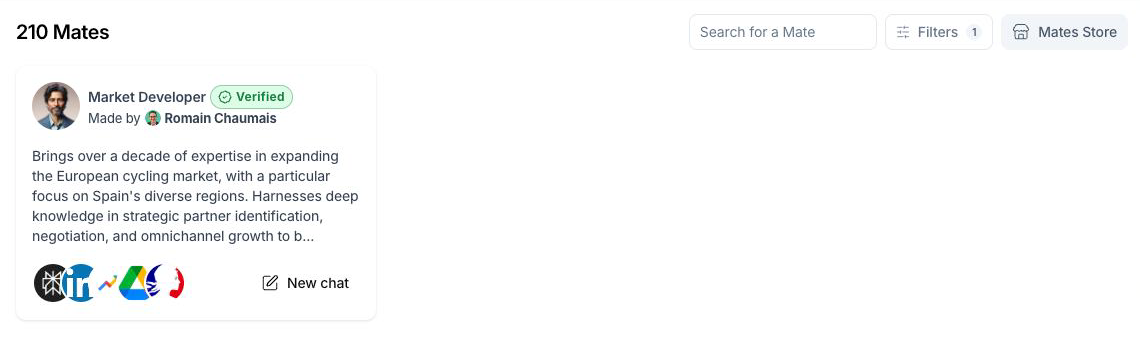
The page title shows how many Mates you have access to, for example "12 Mates". The list shows each Mate that you can use or manage.
Read a Mate card
Each card shows:
- The Mate's avatar, name and badge, if it has one.
- Made by: the member who created the Mate, or allmates.ai.
- A short extract of the Mate's description.
- The avatars of the tools attached to the Mate.
- The card actions (see below).
Search and filter
At the top right of the page, use the search box Search for a Mate. The search looks in the Mates' names and descriptions.
To filter the list:
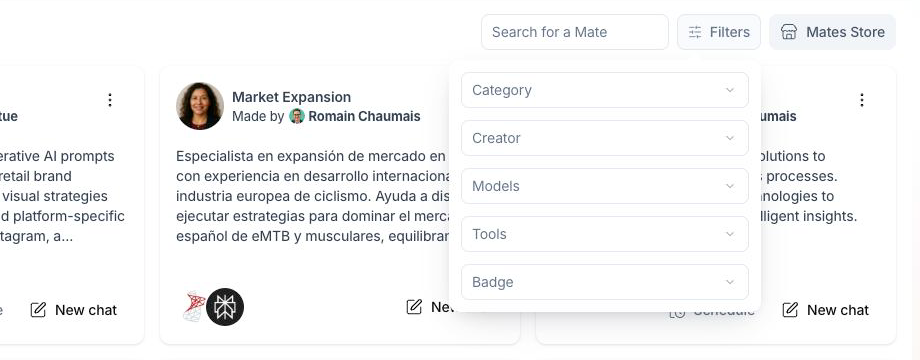
- Click Filters.
- Choose one or more values in each filter:
- Category: the Mate's category, for example Marketing or Legal.
- Creator: the member who created the Mate, or allmates.ai.
- Models: the model the Mate uses.
- Tools: the tools attached to the Mate.
- Badge: Beta, Verified or Deprecated. You choose one badge at a time.
- The list updates at once.
The filters combine: a Mate shows only if it matches every filter you set. Inside one filter, a Mate shows if it matches one of the values you chose. The Filters button shows the number of active filters. To clear a filter, remove its values.
The Creator, Models and Tools filters only offer values that exist in your list. On a phone, the Filters button is an icon next to the search box and opens a window.
Act from a card
The card footer holds two buttons:
- Schedule: opens the schedule window, so this Mate runs a task for you at a set time. You see it when the Mate allows members to schedule it, or when you are an admin of the Mate. See "Scheduling Your Mates for Automated Workflows".
- New chat: starts a new conversation with this Mate.
If you manage this Mate, you also see a menu (three dots) at the top right of the card. It holds Rename (when you can edit the Mate), and, for a Mate admin, Export, Duplicate and Delete. To open the Mate's configuration, click the card.
The Mates Store button at the top of the page opens the store of ready-made Mates.
What the badges mean
A badge is a label on a Mate. A Mate has one badge or none.
You see the badge on the Mate card, in the Mate's details when you hover its avatar in a conversation, when you choose a Mate for a new chat, and in the mention list (@).
Set or change a badge
You can set a badge if you are an admin of the Mate and your plan lets you manage Mates (Expert plan by default; your organization's plans may differ).
- Open the Mate: click its card in the Mates list.
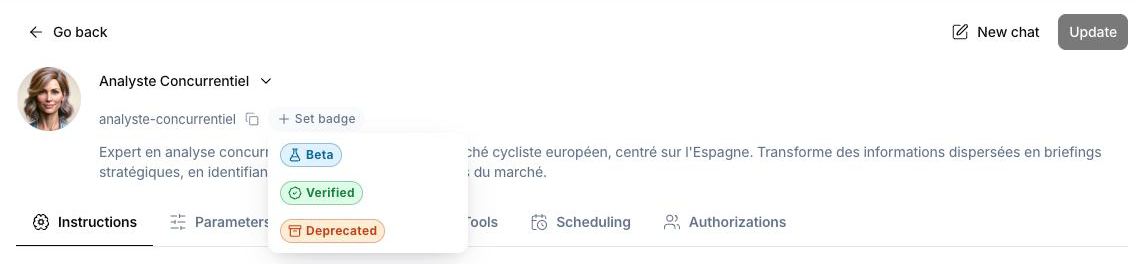
- Under the Mate's name, click Set badge. If the Mate already has a badge, click the badge.
- In the menu, choose Beta, Verified or Deprecated.
The badge applies at once, for every member. You do not need to deploy the Mate.
To remove the badge, open the same menu and click the badge that has a check mark.
Good to know
- Any admin of a Mate can set any badge on it, Verified included. The creator of a Mate is an admin of it, so a creator can mark their own Mate as Verified. Agree in your organization on who uses Verified.
- A badge does not change what a Mate can do. It is a label only.
- Members who cannot manage a Mate see its card, but cannot open its configuration.