Exporting a conversation
Save a whole conversation as a Docx, PDF or Markdown file, copy one message or export one document.
Last updated About 15 hours ago
You can save a whole conversation as a file: a Word document, a PDF or a Markdown text file. Use it to archive a discussion, send it to someone who has no allmates.ai account, or keep a record of a Mate's work. This article is for every member who can open the conversation.
To copy only one message, or to export one document that a Mate wrote, see the last sections.
Export the whole conversation
- Open the conversation.
- At the top right, click the ⋯ menu (Actions), then Export conversation.
- Choose a format:
- Docx: a Word document.
- PDF: a PDF file.
- Text (markdown): a
.mdtext file.
- Your browser downloads the file.
A Conversation exported successfully message confirms the export. If the export fails, you see Failed to export conversation. Try again.
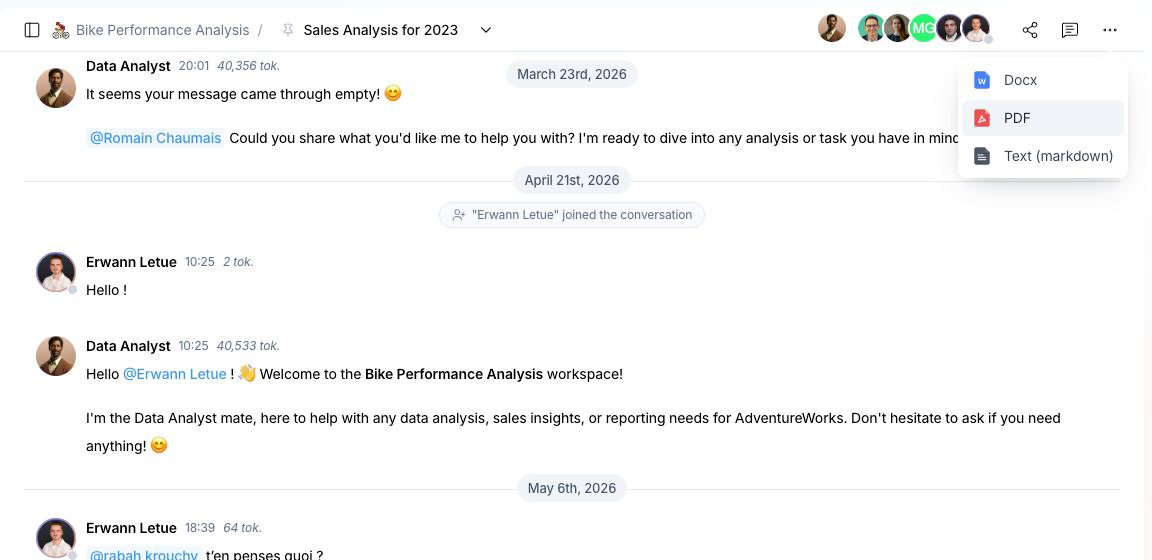
The Export conversation item shows only when the conversation has at least one message.
What the file contains
- Title: the file name and the title at the top are the name of the conversation.
- Messages: each message is a section with the name of its author (the Mate or the member), in the order of the conversation.
- Formatting: headings, bold and italic text, links, lists, tables, quotes and code blocks are kept.
- Charts: in Docx and PDF, a chart appears as an image. In Text (markdown), each chart is replaced by the text [Chart].
- Images that cannot be included: if a chart image cannot be added to a Docx or PDF file, the text [Image unavailable] takes its place.
- Carousels: carousel widgets are left out of the file.
A Mate is still replying
You can export while a Mate is still writing. The response that is not finished is left out of the file. The confirmation message then tells you how many responses were not included, for example "1 response still being generated was not included". Export again when the Mate has finished to get the complete conversation.
Copy one message
To copy a single message instead of the whole conversation:
- Hover over the message. An action bar appears.
- Click the copy icon (Copy message).
The message is copied with its formatting. You can paste it into an email, a document or another tool. A Message copied to clipboard confirmation appears.
Export one document from a message
When a Mate writes a long answer as a document, the document has its own Export document button. It exports only that document, in Docx, PDF or Text (markdown). See "Experiencing Richer Interactions with Interactive Widgets" for the steps.
Good to know
- The file goes to your usual downloads folder.
- Hidden messages are exported like the other messages. A message you hid from the Mate's context is still part of the conversation record.
- Files attached to messages are not included in the export. To get them, see "Finding the files of a conversation".
- To share a conversation as a read-only web page instead of a file, see "Sharing a conversation with a public link".