Using your own model provider keys (BYOK)
Connect your organization's own account with a model provider and give its models to your Mates.
Last updated About 7 hours ago
This article explains how to connect your organization's own account with a model provider (Bring Your Own Key, or BYOK) and how to give its models to your Mates. It is for organization Owners and Admins. This feature is part of the Enterprise offer.
With your own connection, your provider bills your organization directly for the models that run on it.
Create a connection
- At the top of the sidebar, click your organization's name.
- Click Settings.
- Open the Models management tab, then the Connections sub-tab.
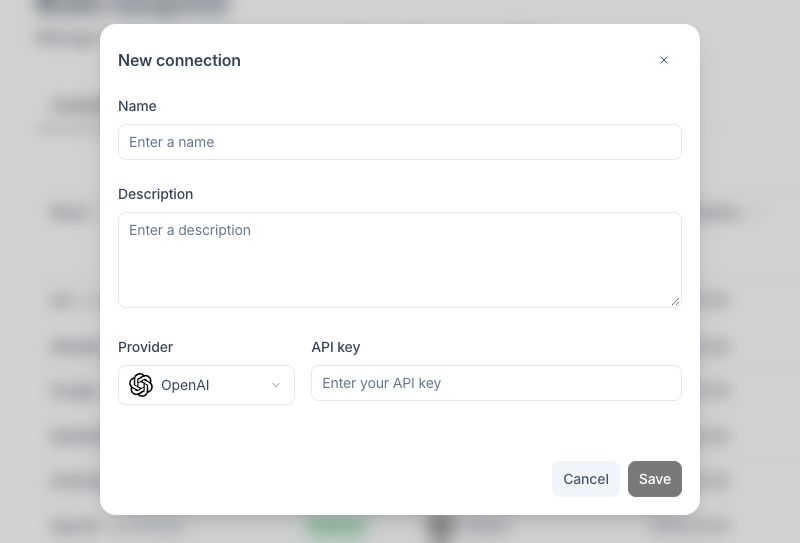
- Click Create connection. The New connection dialog opens.
- Enter a Name and, if you want, a Description.
- In Provider, pick your provider: OpenAI, OpenAI Compatible, Mistral, OpenRouter, GoogleAI, GoogleVertexAI, Anthropic, Azure OpenAI, Azure AI or xAI.
- In API key, paste the key that your provider gave you.
- Fill in the fields that your provider needs:
- GoogleVertexAI: no API key. Paste the service account key in JSON Credentials, then enter the Project ID, the Region and the Project Number.
- OpenAI Compatible: enter the Base URL of the service.
- Anthropic and xAI: the Base URL is optional. Leave it empty to use the provider's default endpoint.
- Azure OpenAI and Azure AI: see "Connecting Microsoft Azure models".
- Click Save.
Your connection has no by Allmates badge. This badge marks the connections that come with every organization.
To change a connection later, click Edit the connection in its row. You cannot change the provider. The API key stays hidden: click the pen icon next to it to enter a new key.
Add a model on your connection
A connection does not give models to your Mates by itself. Add each model that you want:
- Open the Models sub-tab.
- Click Create model. The New model dialog opens.
- Enter a Name. Mate editors see this name in the Model list of a Mate.
- In Connection, pick your connection.
- In Physical model, pick the model. The list shows the models of your provider. It does not offer deprecated models.
- Click Save.
The model shows with the Deployed status, and Mate editors can now pick it. You can also make it the Default model or the Fallback model. See "Managing your organization's models".
Providers and their models
Each provider keeps an official list of its models and updates it at each release:
For example, a Mistral connection offers Mistral Large Latest (v3), Mistral Medium Latest (v3.1) and Mistral Small Latest (v4) in the Physical model list.
Credits
- Replies from a Mate that runs on your own connection consume no credits. Your provider bills your organization directly.
- When the credit balance reaches zero, these Mates keep replying. Mates on the connections that come with the organization stop until you add credits. See "Understanding credits".
Disable or delete a connection
- In the Connections sub-tab, click Disable the connection in its row. You can no longer create models on it. To undo, click Restore the connection.
- Click Delete the connection, then Delete connection to confirm.
You can delete a connection only when no model runs on it. Otherwise, the delete button stays greyed out and its tooltip gives the reason, for example "Cannot delete: 2 models run on this connection. Move those models to another connection or delete them first."
Good to know
- To stop using a key, enter a new one with Edit the connection, or disable the connection.
- Only the connections of your organization can be edited, disabled or deleted. The connections with the by Allmates badge cannot.