Reading login-protected pages with the web scraper
Save a site login on the web scraper tool so your Mates can read pages behind a login.
Last updated About 14 hours ago
The web scraper tool lets a Mate read web pages that you name and turn them into clean text. It reads public pages, and also pages behind a login, such as a supplier portal or an internal wiki. For pages behind a login, an organization admin saves the site's login once on the tool. Nobody types the password in a conversation. This article shows how to set up the site login and how to ask a Mate to read protected pages. The setup part is for organization Owners and Admins; the last part is for every member.
Before you start
- To set the site login, you must be an Owner or an Admin of the organization, with a plan that lets you manage tools (Expert plan by default; your organization's plans may differ).
- Use a website account that your organization is allowed to share with its Mates. Every member who uses the tool instance uses this same account.
- The site must use a simple login page. The web scraper cannot pass single sign-on (SSO), a login in several steps, a CAPTCHA or two-factor authentication.
Install the web scraper with a site login
- In the left sidebar, click Mates & tools, then Tools Store.
- Open the web scraper tool.
- Click Install. The Complete required setup window opens.
- If the window shows a Configuration list, choose Use organization credentials.
- Under Organization-level, fill in:
- Website login: the user name or email of the website account.
- Website password: the password of that account.
- Click Install.
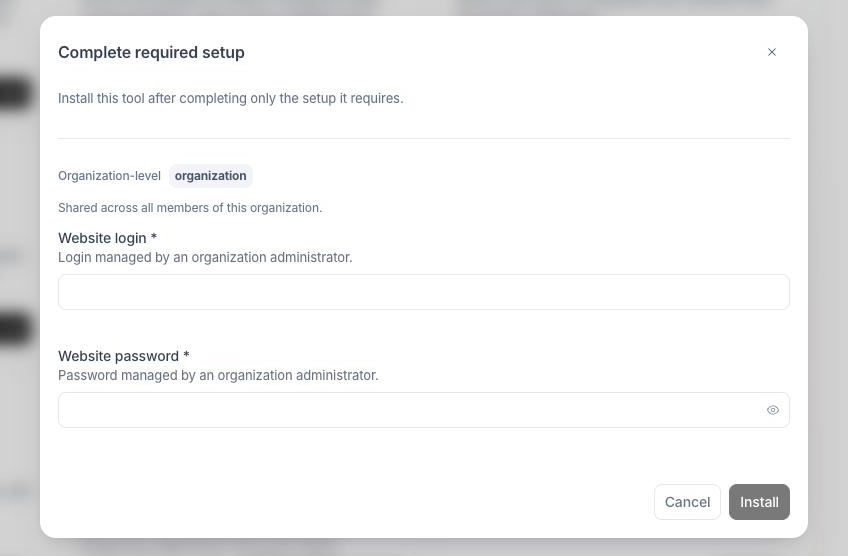
The login is saved on this tool instance. It is shared by all members of the organization, as the Organization-level note says.
If the Configuration list offers Without authentication, choose it when you only need public pages. No login is needed.
If a member who is not an organization admin tries to install the tool with a site login, the dialog shows "Admin-managed credentials are required for this tool. Ask an organization admin to complete the setup."
Change the site login
When the website password changes, update it on the tool instance. You must be allowed to edit this tool instance.
- In the left sidebar, click Mates & tools, then Toolbox.
- Open the web scraper tool instance.
- At the top right, open the Actions menu and click Edit.
- In the Settings tab, update Website login or Website password under Organization-level.
- Click Save.
One login per site
A tool instance holds one login. To read protected pages on two different sites, install the web scraper twice, once for each site, and give each tool instance a clear name, for example "Web scraper: supplier portal".
Ask a Mate to read protected pages
The Mate must have the web scraper tool instance attached. See "Managing a Mate's Tools: Attaching and Detaching Capabilities".
In your message, give the Mate:
- The address of the site's login page.
- The addresses of the pages to read, on the same site.
For example: "Log in at https://portal.example.com/login and summarize the pages https://portal.example.com/orders/123 and https://portal.example.com/orders/124."
The Mate signs in with the saved login, reads each page and works from its content. You never see the password.
For public pages, give the page addresses only.
Good to know
- In one request, a Mate reads a limited number of pages, all on the same site. Pages on another site are refused.
- The web scraper reads only the pages you name. It does not follow the links of a page.
- A very long page can be refused if its content is too large.
- If one page fails, the Mate still gets the other pages.
- If the site login is missing or wrong, the tool returns an error. Ask an organization admin to check the login on the tool instance.
- Each use of the tool shows as a new sign-in on the site.